

How to Track Dead Stock in Phoneo
This tutorial explains how to track dead stock in Phoneo Seller CRM, a mobile shop management software designed for mobile retailers. In this video, you will learn how to identify and track dead stock by setting a fixed time limit, after which unsold stock is automatically considered dead stock. Phoneo allows mobile shop owners to define a specific number of days, such as after xyz days, to mark phones or accessories as dead stock if they are not sold within that period. This feature helps mobile retailers quickly identify slow-moving inventory, including new phones, used phones, second hand phones, used mobiles, and accessories that have been lying in stock for too long. The tutorial explains how tracking dead stock helps shop owners take faster action, such as reducing prices, applying discounts, creating offers, or pushing those items for quick sale. Phoneo Seller CRM makes it easy to monitor stock age, avoid long-term inventory blocking, and improve cash flow by selling dead stock on time. This tutorial is useful for mobile shop owners who want better control over inventory, want to reduce losses, and want to ensure that old stock does not affect business growth. This tutorial is ideal for mobile phone shops, used mobile dealers, second hand phone sellers, and retail stores looking for a smart way to manage and clear dead stock quickly. Tutorial Type: Inventory Analysis Topic: Dead Stock Tracking Stock Category: New Phones, Used Phones, Second Hand Phones, Used Mobiles, Accessories Software Category: Mobile Shop Management CRM Target Users: Mobile Shop Owners, Used Mobile Dealers, Retail Staff Business Use Case: Dead stock identification and faster stock clearance, How to track dead stock Dead stock management for mobile shop Unsold stock tracking Used phone dead stock Second hand phone dead stock Mobile shop inventory analysis Phoneo dead stock feature Mobile shop CRM tutorial.
Set Dead Stock Day Limit – Step-by-Step Guide
Use this setting to define after how many days your stock will be marked as “Dead Stock”, helping you track slow-moving items and take action faster.
Step 1: Open Menu
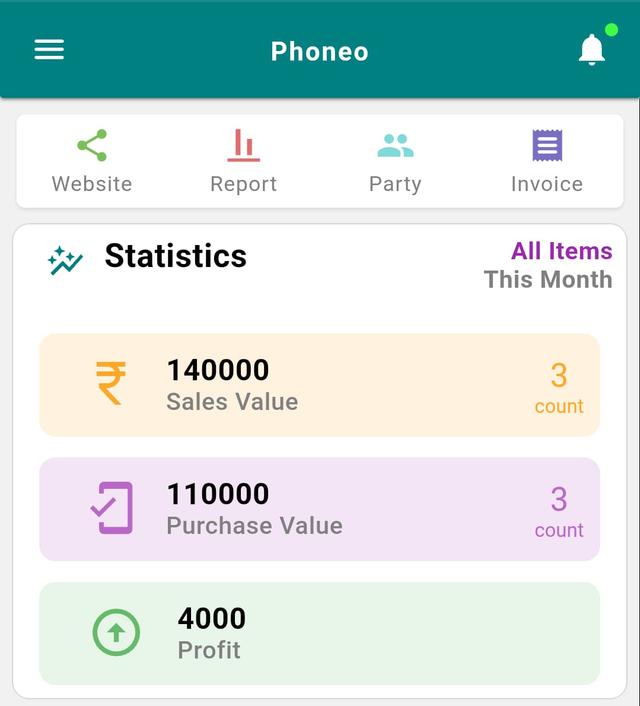
- Go to the Home page.
- Tap the Menu button (☰) at the top-left corner.
Step 2: Open Settings
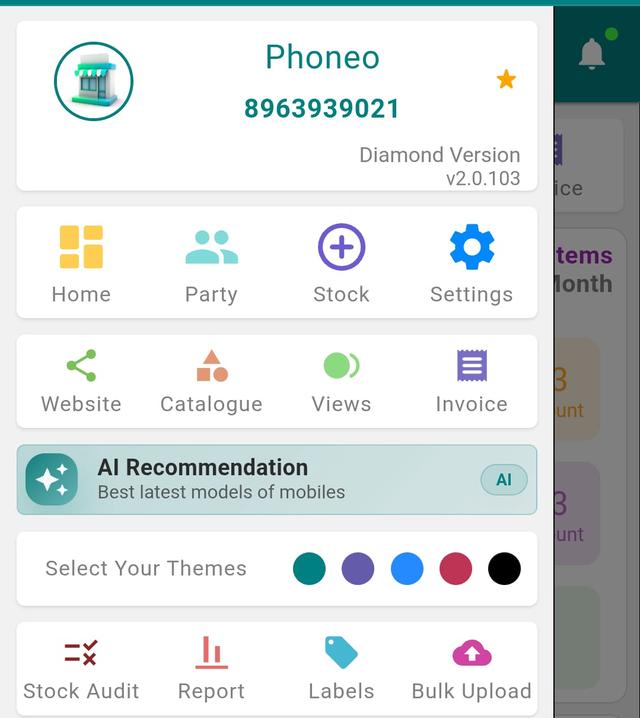
- Tap on Settings.
Step 3: Open Dead Stock Setting
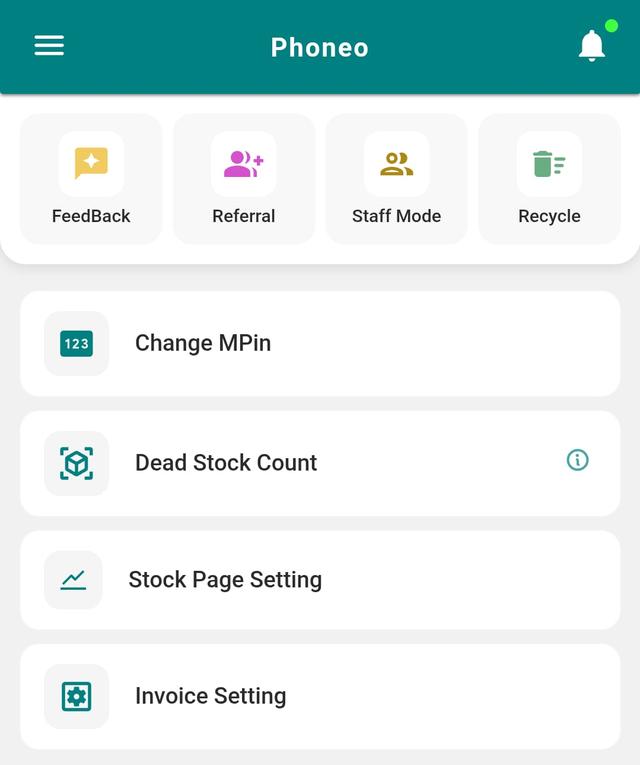
Tap on Dead Stock Count.
Step 4: Set Day Limit
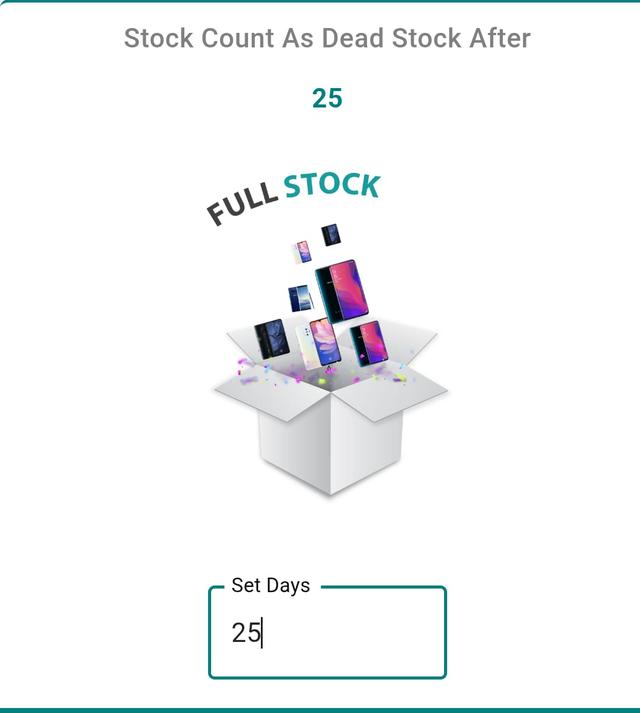
Enter the number of days after which stock should be considered dead.
(Example: 20 days, 30 days, 60 days)
Step 5: Save Settings
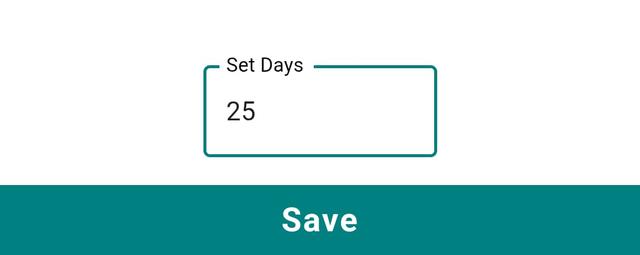
Tap Save.
Your dead stock limit is now set successfully.
Final Note
Once saved, Phoneo will automatically flag any stock crossing your chosen day limit as dead stock, so you can spot slow-moving items and clear them before they lose more value.