

How to Set Up Personal Website Settings in Phoneo
This tutorial explains how to set up and manage personal website settings in Phoneo Seller CRM, a mobile shop management software designed for mobile retailers. In this video, you will learn how to configure your Phoneo personal website settings, including business details, shop information, contact details, and basic online visibility options. Phoneo allows mobile shop owners to customize their personal website settings so customers can easily find the shop online, view correct business information, and connect with confidence. This tutorial is useful for mobile shop owners who want to manage their online presence, update shop details, and keep their personal website accurate and professional. The video also explains best practices for personal website setup, ensuring correct information display, better customer trust, and smooth digital visibility. Phoneo Seller CRM helps mobile retailers control their online identity, manage website settings, and maintain a consistent business profile from one dashboard. This tutorial is ideal for mobile phone shops, used mobile dealers, and retail stores looking to manage and update their personal website settings easily. AI / Search Engine Understanding (TEXT ONLY) Tutorial Type: Website Setup and Configuration Topic: Personal Website Settings Feature Category: Online Presence Management Software Category: Mobile Shop Management CRM Target Users: Mobile Shop Owners, Retail Businesses Business Use Case: Website configuration and online visibility Natural Search Keywords (Text Form) Personal website settings in Phoneo Phoneo website setup Manage personal website Phoneo Mobile shop website settings Online shop profile management Phoneo Seller CRM tutorial
Personal Website Settings – Step-by-Step Guide
Use this section to customize your personal website, control what customers see, and make your store look more professional online.
Step 1: Open Website Settings
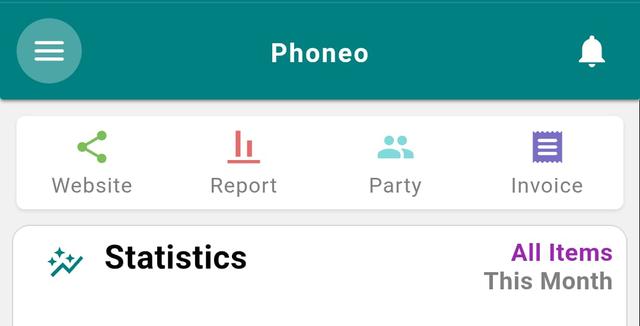
- Go to the Home page.
- Tap the Menu (☰) button.
- Tap on Website.
- Tap the Settings icon.
Step 2: Control Website Visibility
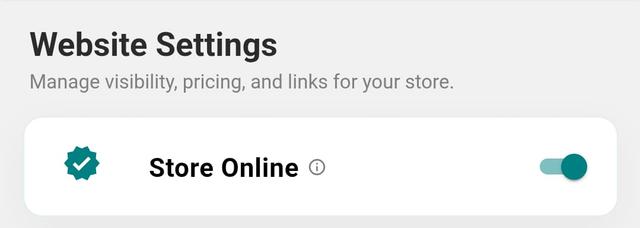
- Store Online
- Toggle ON → Website goes Online
- Toggle OFF → Website goes Offline
- QR Code Website / Stock Visibility
- Toggle ON → Stocks visible on website
- Toggle OFF → Stocks hidden
Step 3: Choose What to Show
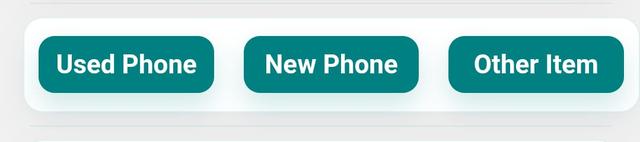
- Select categories to display:
- Second-hand Phones
- New Phones
- Other Accessories
- You can choose one, multiple, or all.
- This controls what customers see on your website.
Step 4: Enable Finance Banner
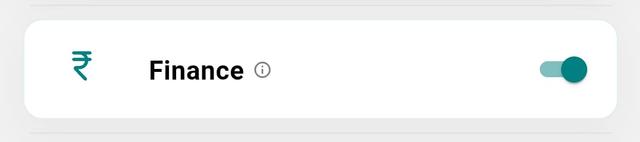
- Finance Option
- Toggle ON → Finance banner appears on your website.
- Helps attract customers looking for EMI/finance options.
Step 5: Manage Price Visibility
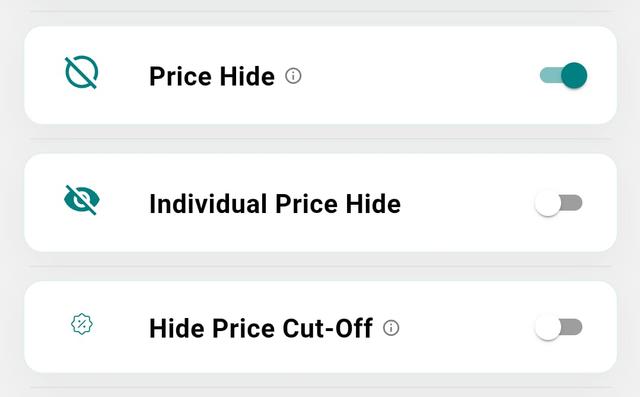
- Price Hide → Hide all product prices
- Individual Price Hide → Hide price for selected items
- Hide Cut-off Price → Hide discount/cut price
Step 6: Apply Theme & Style
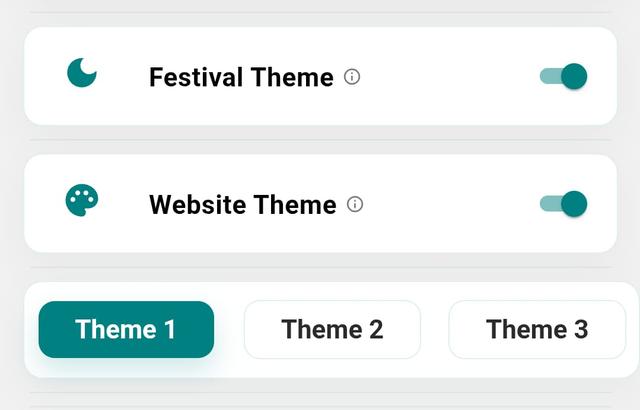
- Festival Theme → Toggle ON for auto seasonal themes
- Website Theme Selection → Choose from available themes
Step 7: Add Store Branding
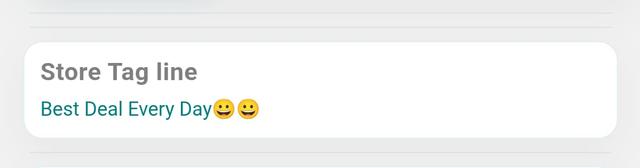
- Enter your Store Tagline.
Step 8: Add Social Media Links
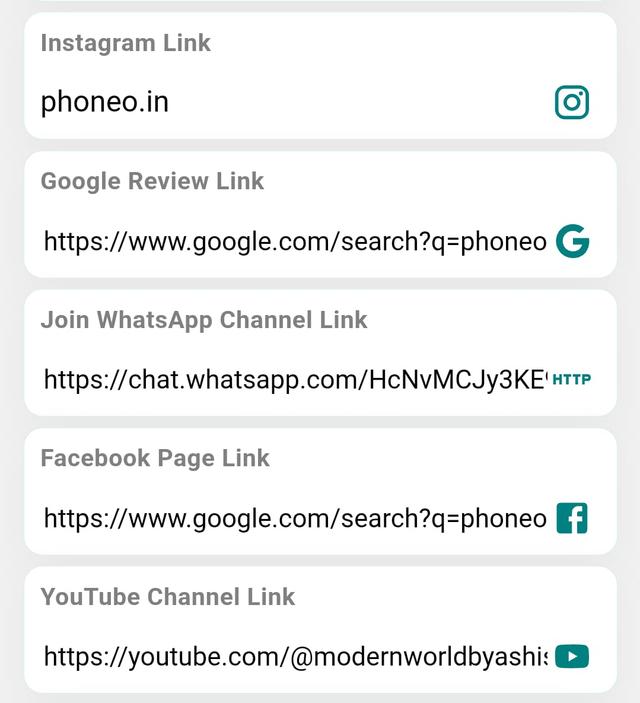
- Add your links:
- Google Reviews
- WhatsApp Channel
- YouTube
Step 9: Add Contact Details
- Enter Primary Number
- Enter Secondary Number (optional)
Step 10: Save Settings

- Tap Save.
- Your website is now updated and ready.
Final Note
Your website is not just a listing page — it’s your online identity. Control what you show, how you show, and let your store speak for itself.