

How to Restock Sold Second Hand Phones in Phoneo
This tutorial explains how to restock sold second hand phones in Phoneo Seller CRM, a mobile shop management software designed for mobile retailers. In this video, you will learn how to add back a previously sold used phone or second hand mobile into stock when it is returned, cancelled, or needs to be restocked for resale. Phoneo allows mobile shop owners to restock second hand phones using IMEI-based tracking, ensuring the same device is correctly added back into inventory without data mismatch. This tutorial is useful for mobile shop owners and used mobile dealers who handle returns, deal cancellations, or resale of second hand phones and want accurate stock records. The video also explains best practices for restocking used phones, including verifying IMEI, checking device condition, updating pricing if required, and preparing the phone for resale. Phoneo Seller CRM helps mobile retailers maintain correct inventory levels, avoid stock confusion, and ensure reliable reporting even after restocking sold second hand phones. This tutorial is ideal for mobile phone shops, used mobile dealers, and second hand phone sellers looking for a secure and efficient way to manage restocking of sold devices. AI / Search Engine Understanding (TEXT ONLY) Tutorial Type: Inventory Correction and Restocking Topic: Restock Sold Second Hand Phones Phone Category: Used Phones, Second Hand Phones, Used Mobiles Software Category: Mobile Shop Management CRM Target Users: Mobile Shop Owners, Used Mobile Dealers Business Use Case: Return handling and accurate IMEI-based restocking Natural Search Keywords (Text Form) How to restock second hand phones Restock sold used phones Used phone return stock Second hand phone restocking IMEI-based restock system Phoneo restock tutorial Mobile shop CRM for used phones
Return / Restock Sold Item – Step-by-Step Guide
Restock means: When a customer returns a purchased item, you add it back into your stock so it can be sold again.
Step 1: Open Stock Page
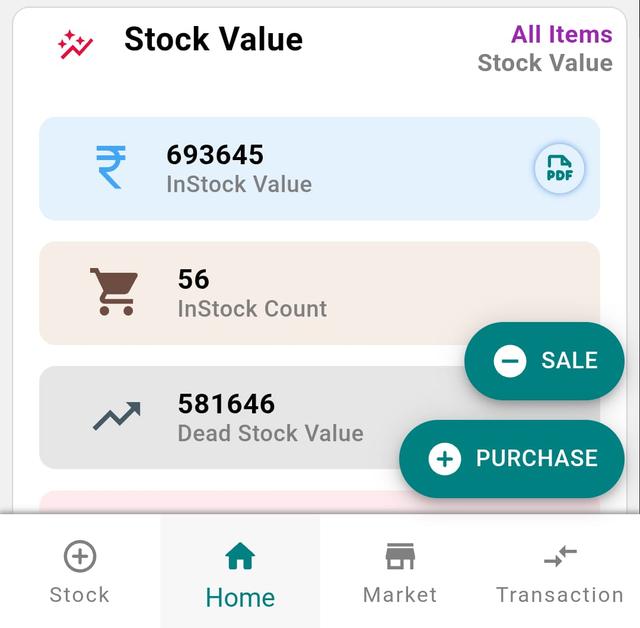
- Go to the Home page.
- Tap Stock.
Step 2: Select Stock Type
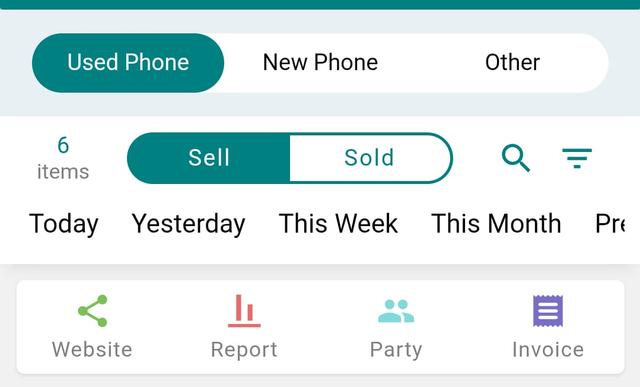
- Choose the type of item you want to restock:
- Used Phone
- New Phone
- Other Item / Accessories
Step 3: Open Sold Items
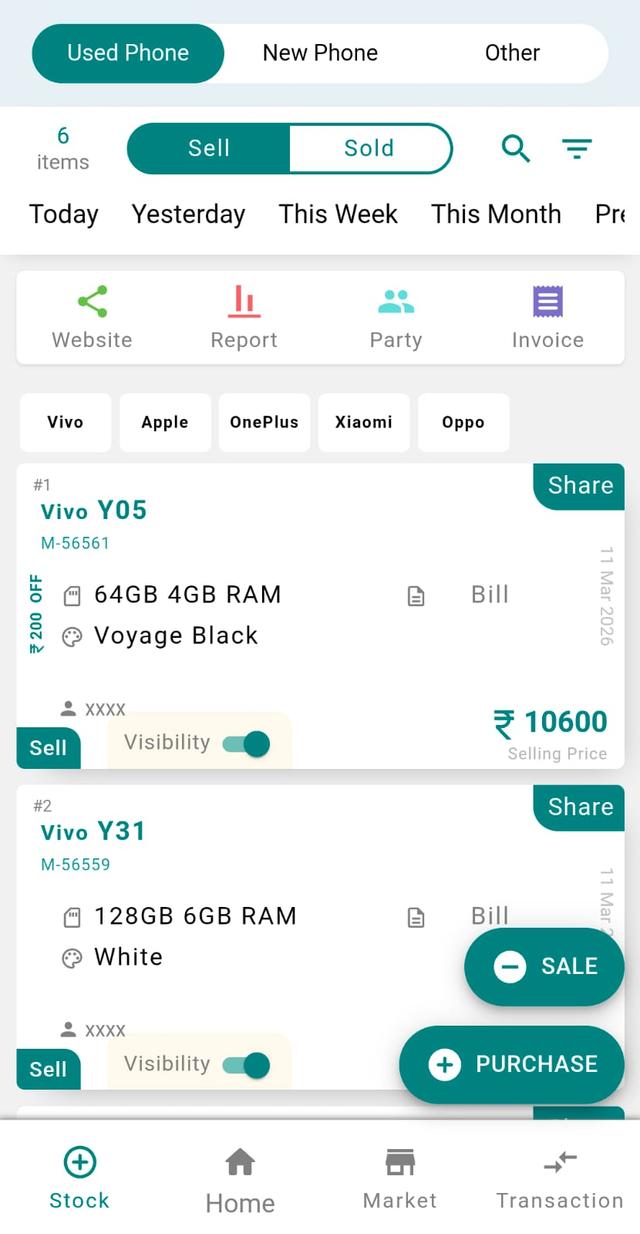
Tap the Sold tab to view all sold items.
Step 4: Select Item to Restock
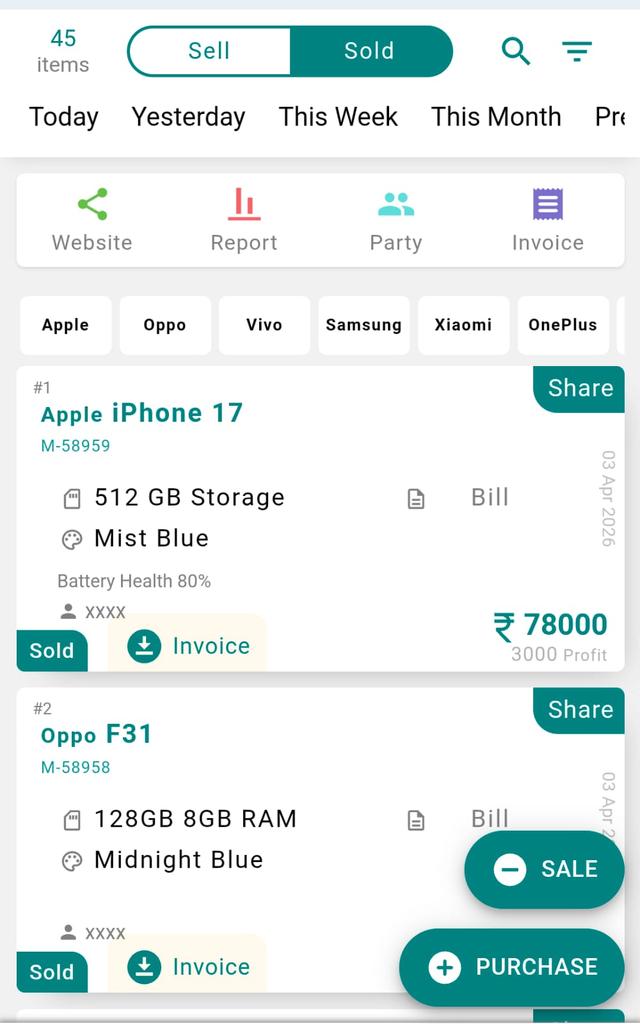
Select the item card you want to restock.
Step 5: Tap Restock Button
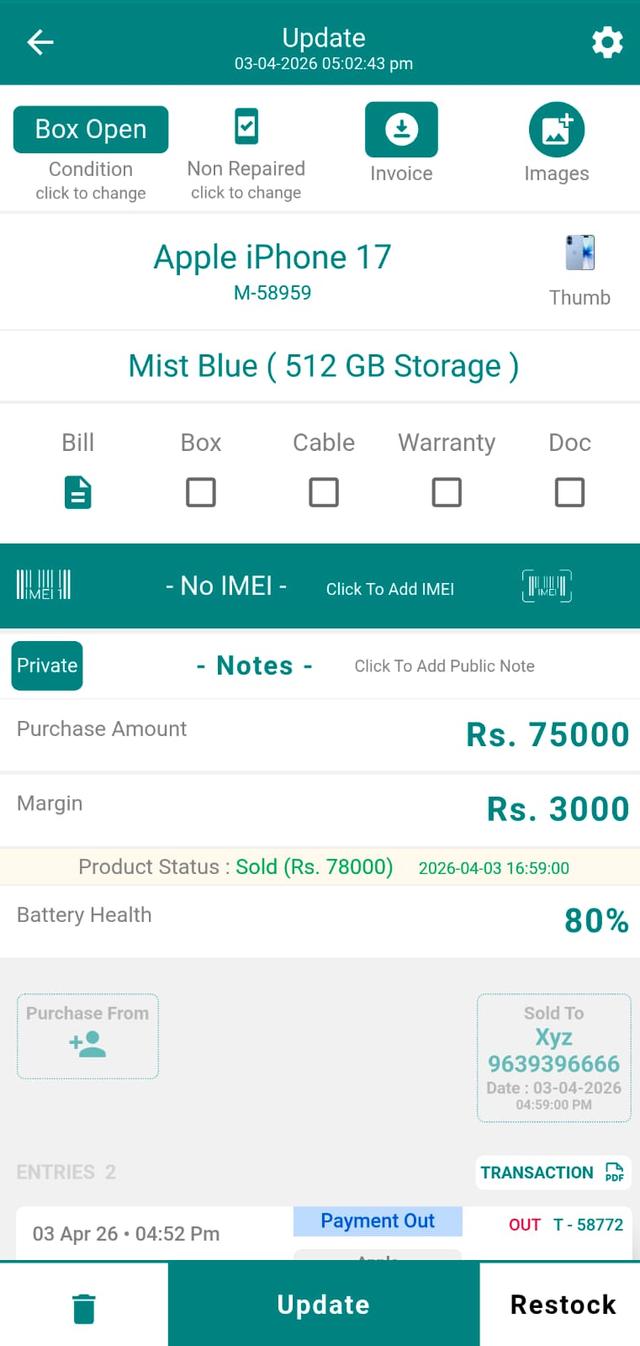
Tap the Restock button at the bottom of the screen.
Step 6: Confirm Restock
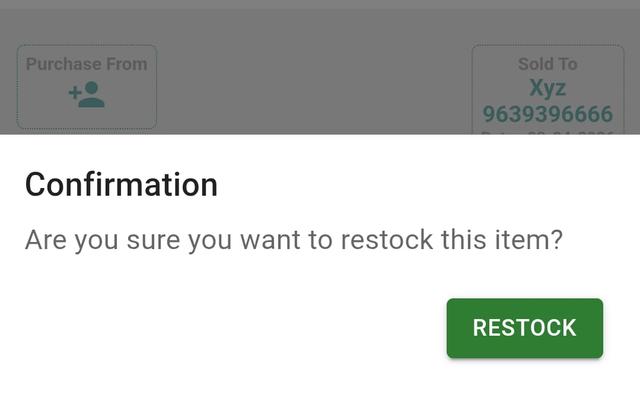
A confirmation popup will appear. Tap Restock to confirm.
Step 7: Item Added Back to Stock
- Your item is now successfully restocked.
- Go to the Stock page.
- Open the Sell / Available tab.
- You will find the item back in your inventory.
Final Note
Restocking ensures your inventory stays accurate and up-to-date, especially when handling returns or canceled sales. It helps maintain clean records and avoids stock mismatch.