

How to Make Invoice for Multiple Phones and Accessories in Phoneo
This tutorial explains how to make an invoice for multiple items in Phoneo Seller CRM using digital, fast, and secure billing. In this video, you will learn how to create a single invoice for multiple new phones, second hand phones, and mobile accessories using Phoneo. The tutorial covers both GST and non-GST billing to support different types of mobile shop transactions. Phoneo allows mobile shop owners to combine multiple items into one digital invoice while automatically updating inventory, tracking IMEI for second hand phones, and maintaining accurate billing records. This tutorial is useful for mobile shop owners and retail staff who sell multiple phones or accessories in one transaction and want a fast and secure billing process without manual errors. The video also explains best practices for multi-item billing, including selecting multiple products, applying GST or non-GST correctly, reviewing invoice details, and completing the sale smoothly. Phoneo Seller CRM helps mobile retailers manage digital billing, inventory updates, customer records, and daily sales reports from one centralized system. This tutorial is ideal for mobile phone shops and retail stores looking for a reliable solution for digital, fast, and secure billing of multiple phones and accessories. Tutorial Type: Billing and Invoice Generation Topic: Multiple Items Invoice Billing Type: GST and Non-GST Software Category: Mobile Shop Management CRM Target Users: Mobile Shop Owners, Retail Staff Business Use Case: Digital, fast, and secure multi-item billing, How to make invoice for multiple phones Multiple phone billing GST billing for mobile shop Non GST billing mobile shop Digital billing for mobile shop Fast secure invoice system New phone and second hand phone invoice Accessory billing with phones Phoneo Seller CRM tutorial.
Sell Multiple Stocks in One Bill – Step-by-Step Guide
Use this process to sell multiple items in a single bill, customize your invoice settings, and manage your invoice history — all in one complete workflow.
Step 1: Start a New Sale
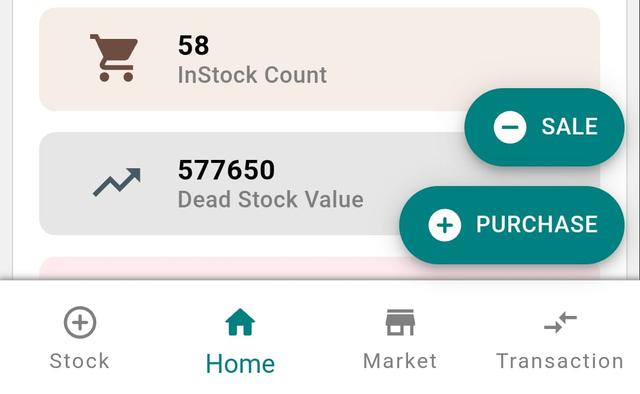
- Go to the Home page.
- Tap the Sale button at the bottom-right corner.
Step 2: Add Customer Details
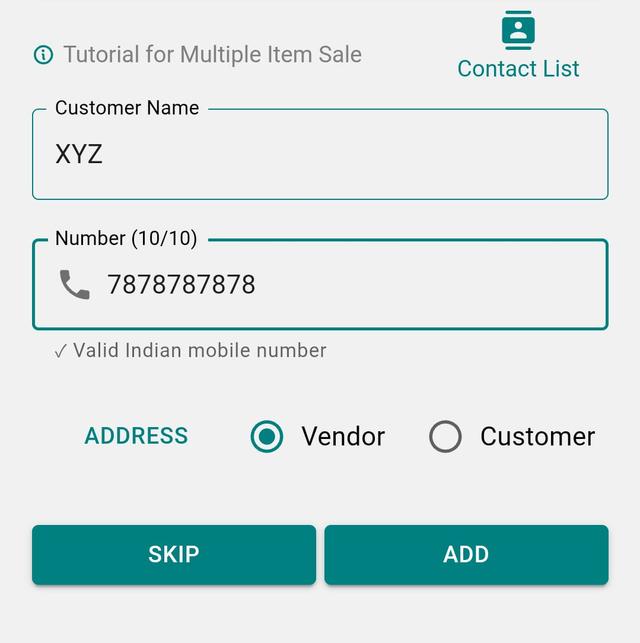
- Enter Customer Name and Mobile Number.
- You can also add Customer Address if needed.
- Select whether the party is Customer or Vendor.
- You can skip this step, but remember: Customer name and number are required to generate a bill.
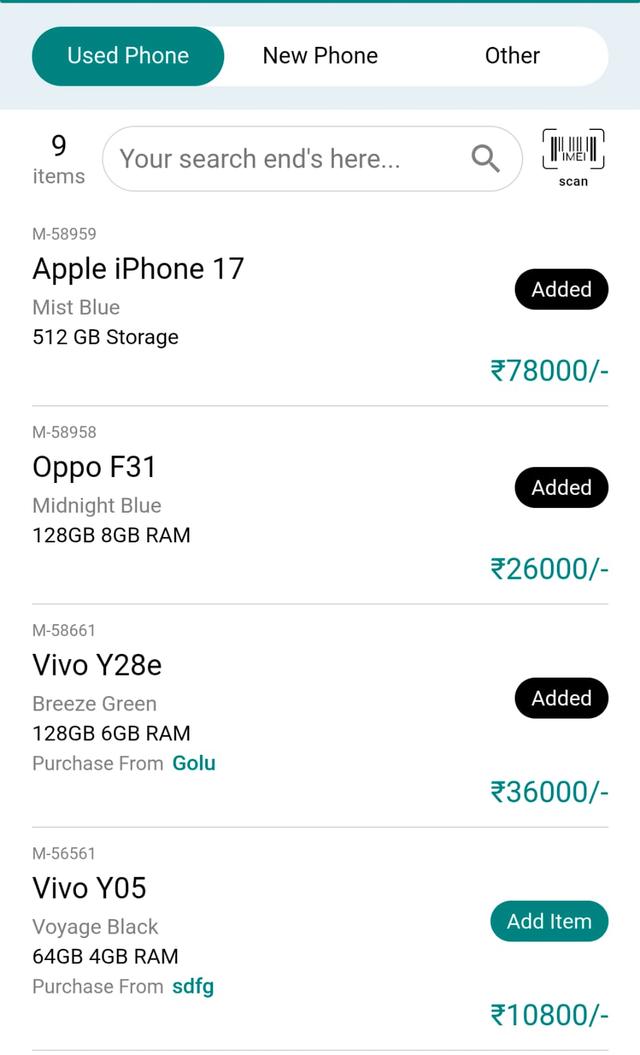
Step 3: Select Items From Stock
- Select items from your stock.
- Available categories include:
- Used Phone
- New Phone
- Other Items / Accessories
- You can also search using IMEI number.
Step 4: Edit Price (Optional)

Tap Edit below the item to update the selling price as needed.
Step 5: Continue to Bill Preview
Tap Preview / Bill once everything looks correct.
Step 6: Add Customer (If Skipped Earlier)

- Tap Add Customer at the top-left.
- Enter Customer Name and Mobile Number.
Step 7: Add More Items to the Same Bill
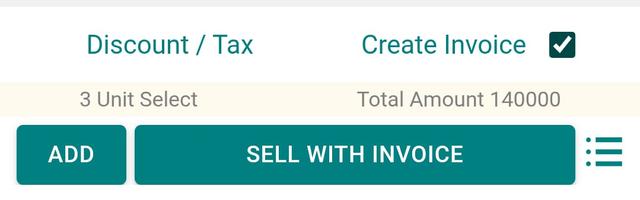
Tap Add (bottom-left) to include more products in the same bill.
Step 8: Apply Discount or Tax (Optional)
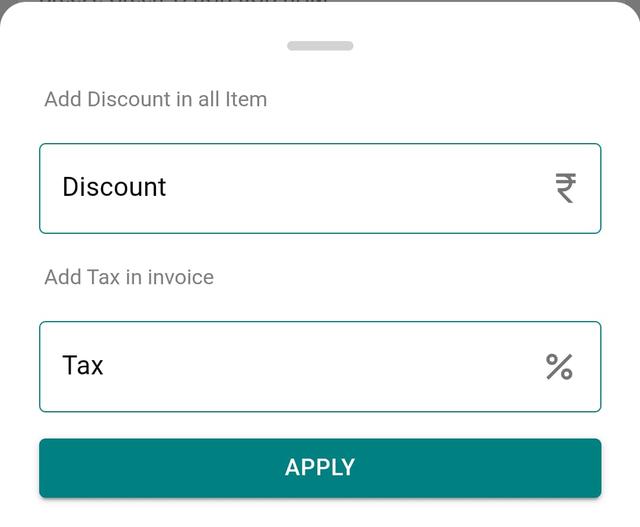
- Tap Discount / Tax.
- Enter Discount Amount and Tax Amount.
- Tap Apply.
Step 9: Generate Invoice
- Enable Create Invoice.
- Tap Sell with Invoice.
Step 10: Choose Invoice Design
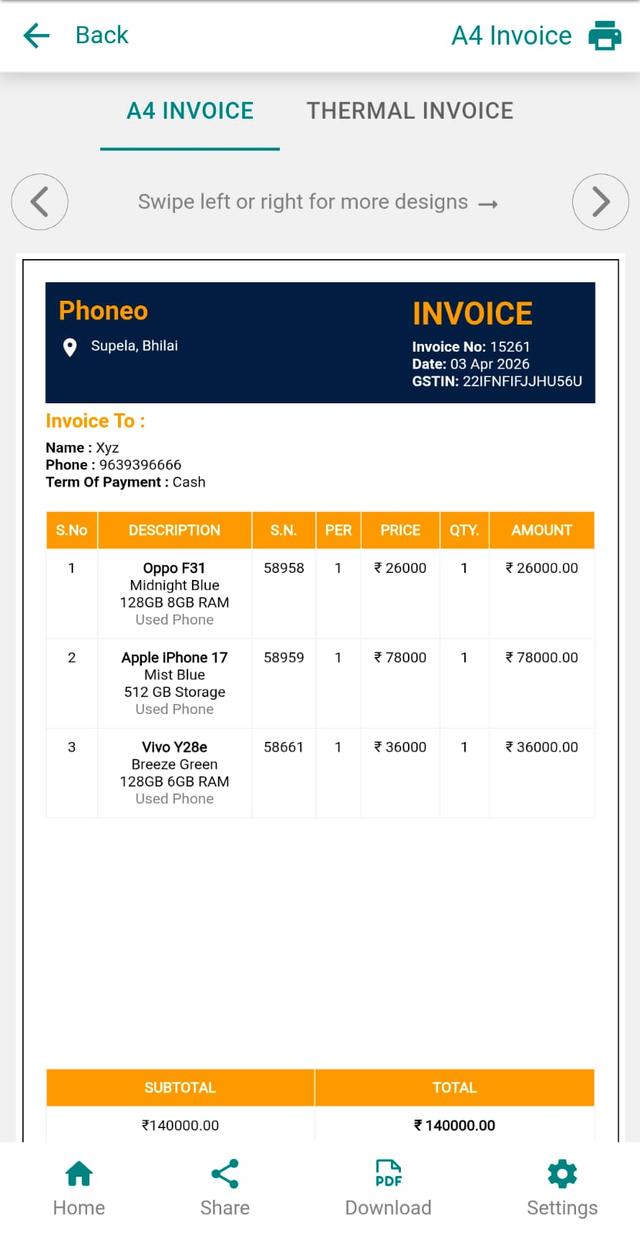
Select from multiple invoice templates based on your preference.
Step 11: Share the Invoice
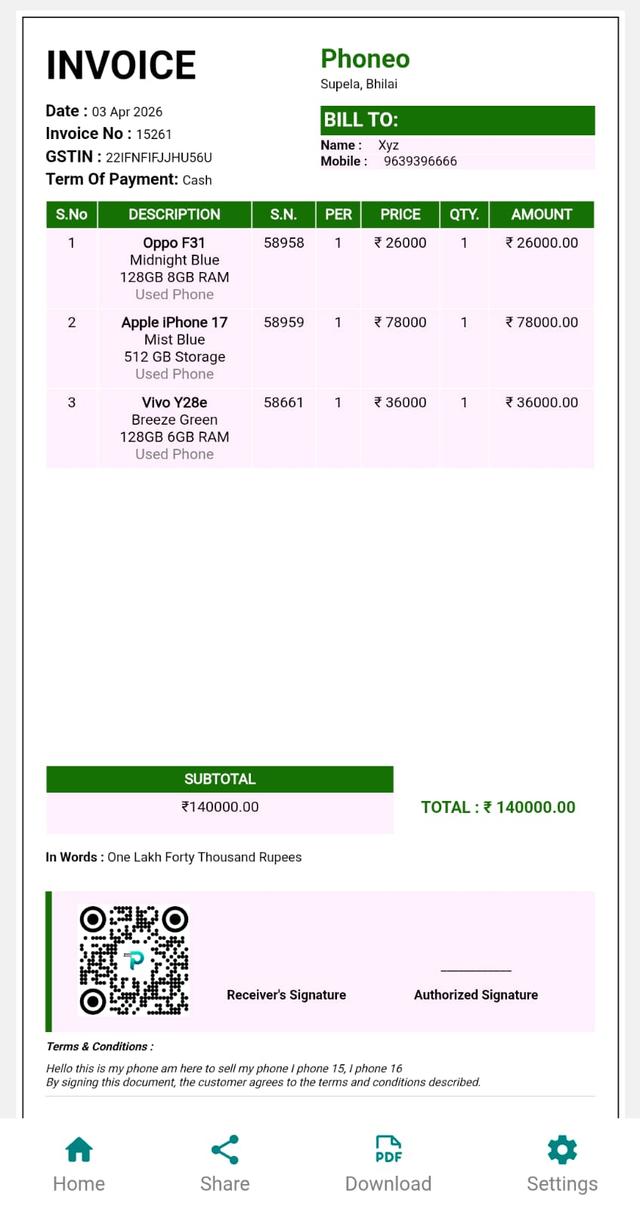
- Tap the Share button.
- Share via WhatsApp, Instagram, Telegram, etc.
Step 12: Download the Invoice
Tap Download to save the invoice on your device.
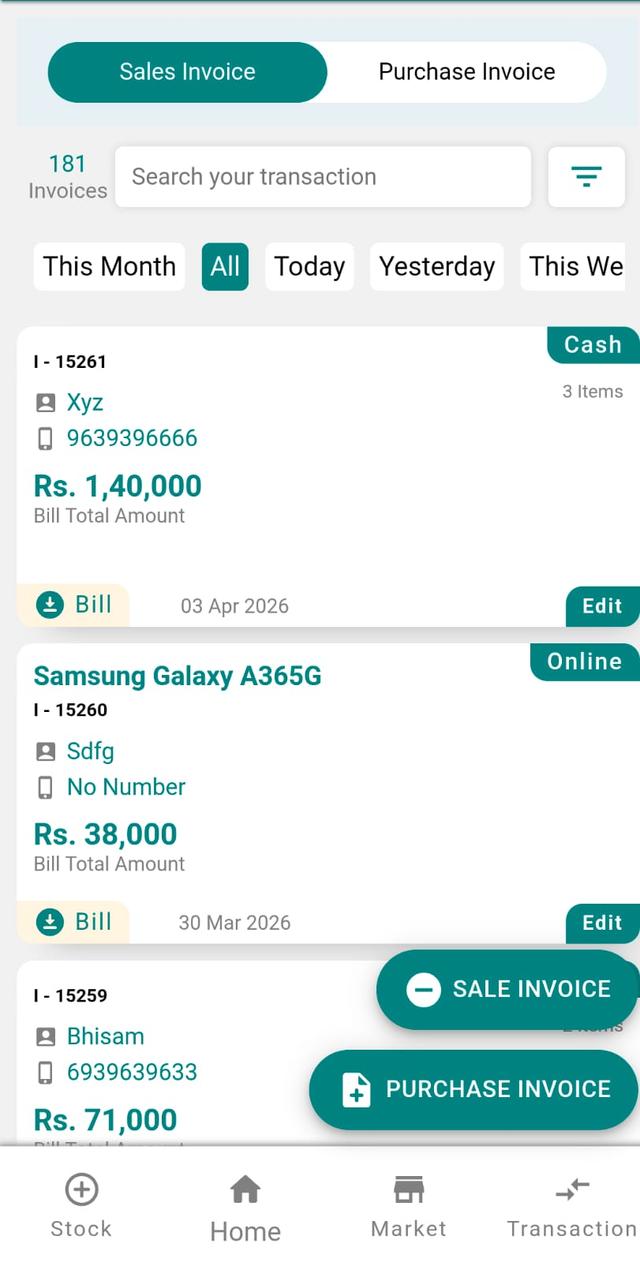
Step 13: View Invoice History
- Go to Home page.
- Open the Invoice tab.
- View all past invoices.
Final Note
This flow helps you combine multiple items in one bill, ensuring faster checkout and clean transaction records.