

How to Add New Phone Stock in Phoneo
This tutorial explains how to add new phone stock in Phoneo Seller CRM, a complete mobile shop management software designed for mobile retailers. In this video, you will learn the step-by-step process to add new mobile phones into Phoneo stock, including brand, model, variant, quantity, purchase details, and pricing information. Phoneo helps mobile shop owners manage new phone inventory accurately, reduce stock mismatch, and keep real-time visibility of available devices. The system supports structured stock entry for new phones to ensure faster billing and smooth daily operations. This tutorial is useful for mobile shop owners handling new mobile phones, bulk stock purchases, and regular inventory updates. It helps ensure that new phone stock is properly recorded and ready for sale. The video also explains best practices for managing new phone inventory, maintaining accurate records, and preparing stock for billing and sales reporting. Phoneo Seller CRM enables mobile retailers to manage new phone stock, customer billing, profit tracking, and daily sales reports from one centralized dashboard. This tutorial is ideal for mobile phone shops and retail stores looking for a reliable mobile shop management system to handle new phone inventory efficiently. Tutorial Type: Inventory Setup Topic: Add New Phone Stock Phone Category: New Mobile Phones Software Category: Mobile Shop Management CRM Target Users: Mobile Shop Owners, Retail Staff Business Use Case: Stock management and billing readiness. How to add new phone stock New mobile stock entry Mobile shop inventory management Phoneo new phone stock Mobile shop CRM software Inventory management for mobile shop Phoneo Seller CRM tutorial New phone stock management system CRM for mobile retailers India.
New Phone (Seal Pack) Purchase – Step-by-Step Guide
Use this guide to add new (seal pack) phones into your stock with proper pricing, units, IMEI, and variants.
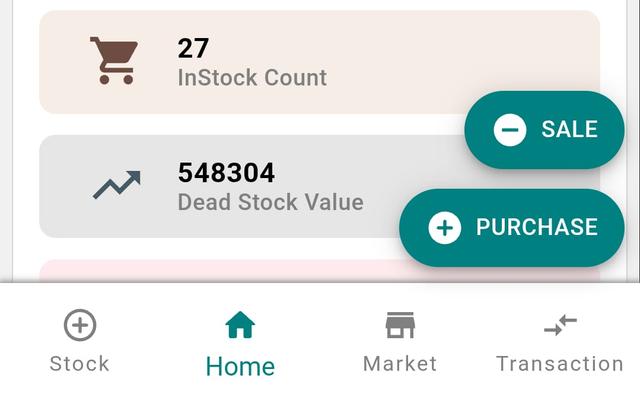
Step 1: Start a New Purchase
- Open the app and go to the Home page.
- Tap / Click the Purchase button.
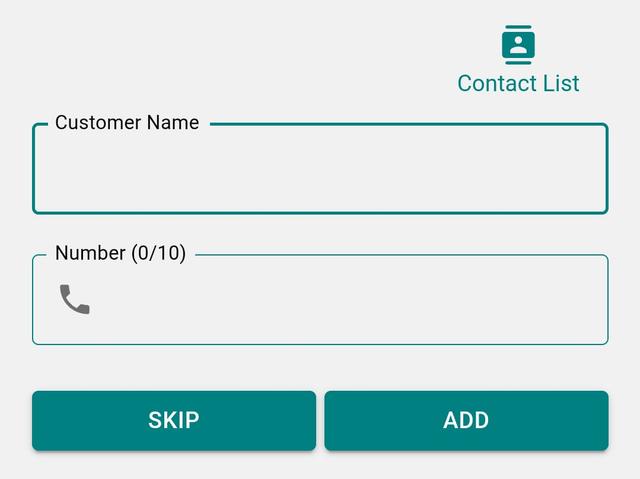
Step 2: Add Party Details (Optional)
- Enter the Customer Name or Mobile Number.
- Choose whether the party is a Customer or a Vendor.
- You can skip this step and continue.
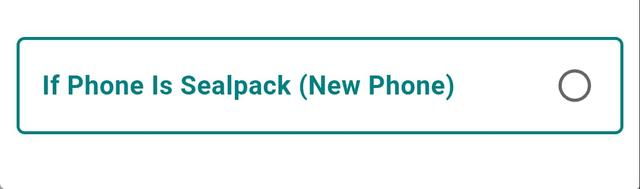
Step 3: Select Phone Type
Choose Seal Pack (New Phone) as the phone type and tap Next.
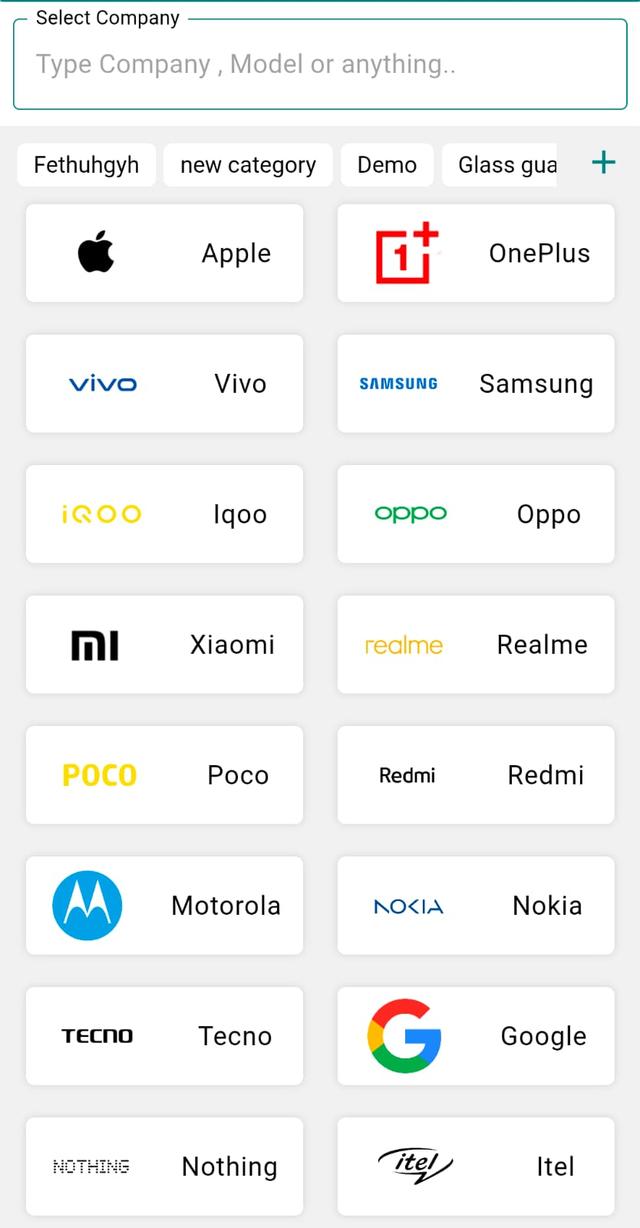
Step 4: Select Company (Brand)
- Tap on Company Name.
- Search the brand if required.
- Select the correct company.
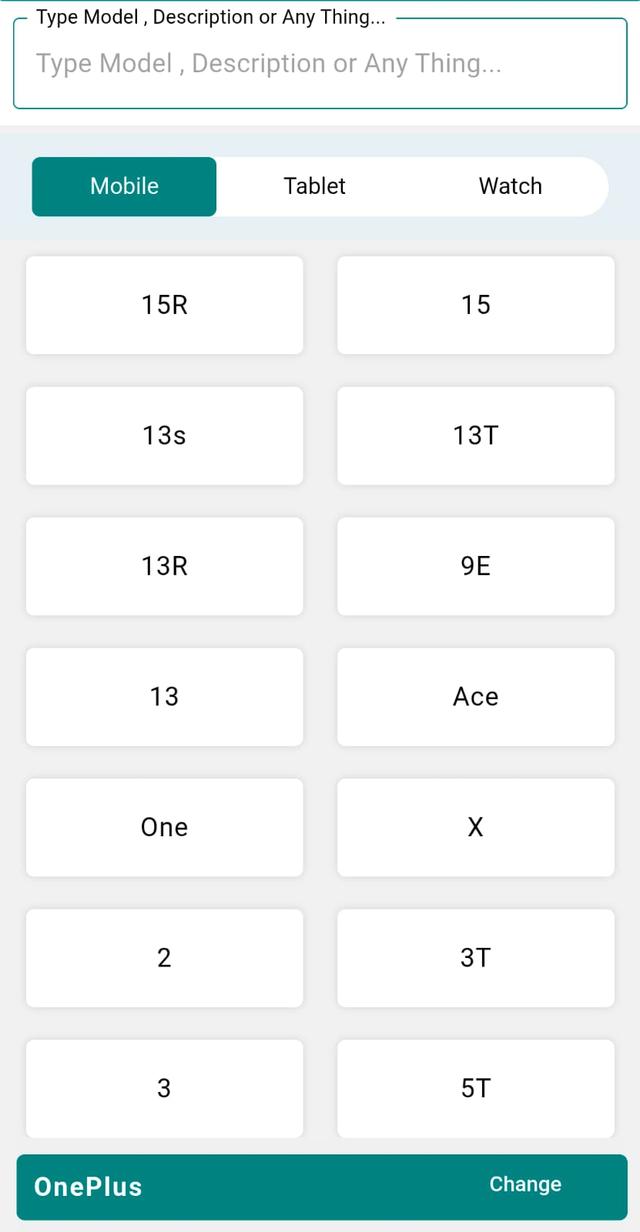
Step 5: Select Model
Tap on Model and select the correct one (data already available).
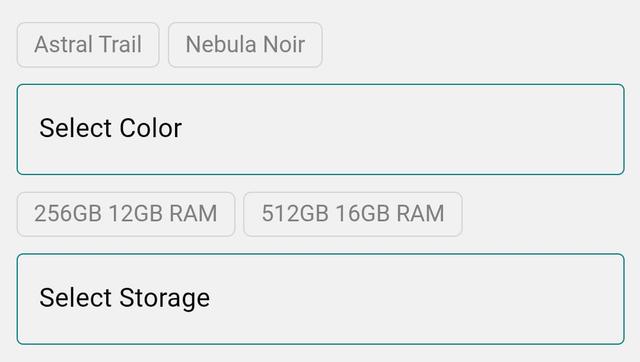
Step 6: Choose Color and Variant
- Select the Color.
- Select the Variant (Storage / RAM).
- These options are pre-filled from the system.
Step 7: Add Customer Details (If Skipped Earlier)
Enter Customer Name and Mobile Number if not added before.
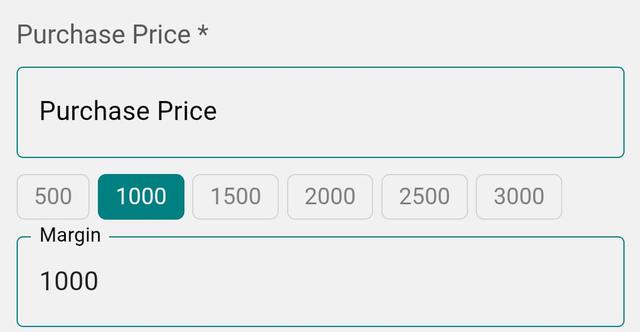
Step 8: Enter Purchase Amount and Margin
- Enter the Purchase Amount.
- Enter the Margin (your profit).
Step 9: Add Multiple Units (Optional)
Tap Add Unit to add multiple pieces of the same model/variant.
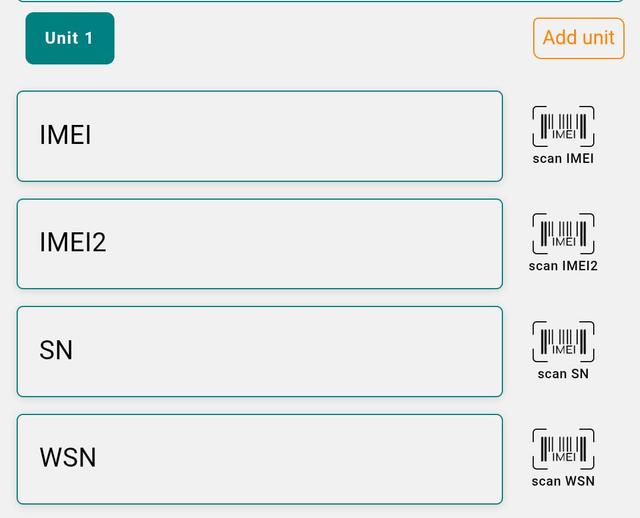
Step 10: Add IMEI Details for Each Unit (Optional)
- Scan IMEI or enter manually.
- Add both IMEIs if available.
- You can also add SN / WSN.
- Tap Save.
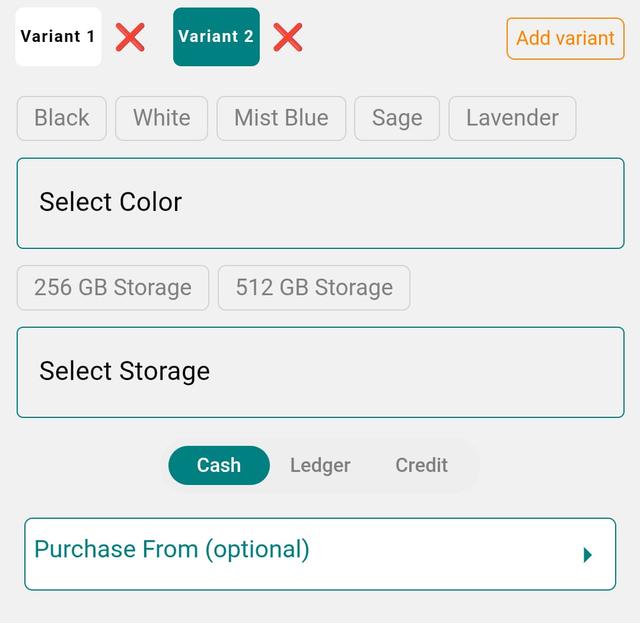
Step 12: Add Another Variant (Optional)
- Tap Add Variant (top-right).
- Select Color and Storage.
- Enter Purchase Price and Margin.
- Add units and IMEIs if needed.

Step 13: Final Save
Tap Save once all units and variants are added.
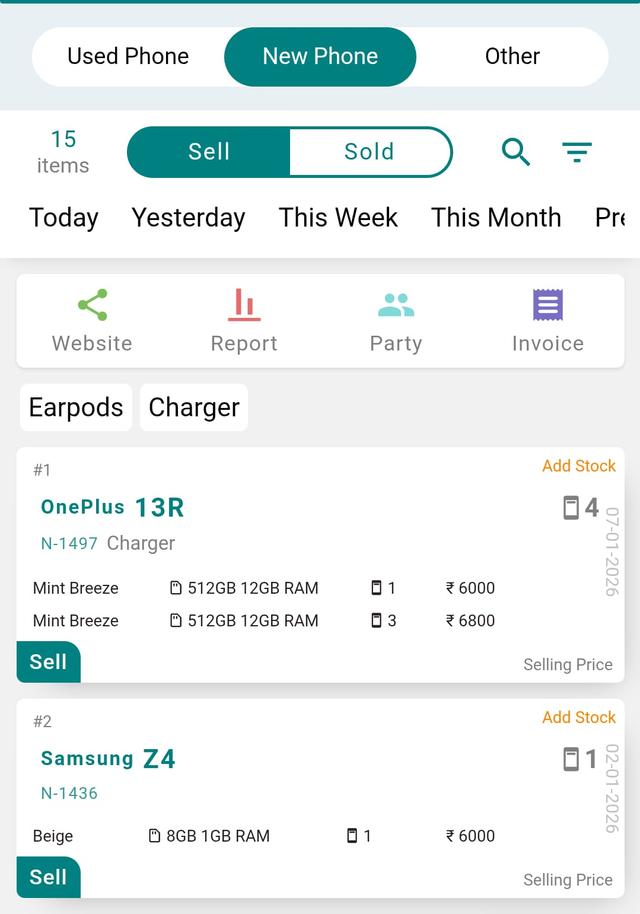
Step 14: View Your Stock
Go to Stock → New Phone tab to see added stock.
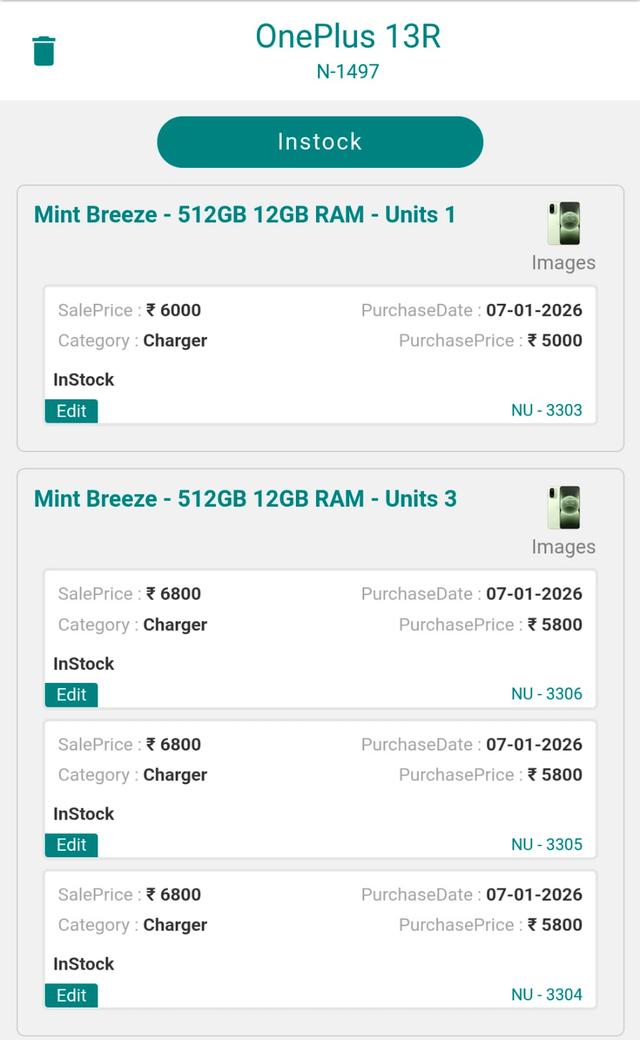
Step 15: View Stock Details
Tap any stock card to view Company, Variant, Units, IMEI, and Pricing.
Final Note
Once saved, your new phone stock is ready for selling, billing, and tracking with clean inventory and correct profit calculation.