

How to Activate Personal Website in phoneo
This tutorial explains how to activate your personal website in Phoneo Seller CRM, set your business location, and add up to four stores or stock locations. In this video, you will learn how to make your Phoneo personal website live and online so customers can view your business presence digitally. The tutorial covers how to set your shop location correctly, helping customers and systems identify your business area accurately. You will also learn how to add up to four stock locations or stores in Phoneo, allowing mobile shop owners to manage inventory across multiple shops or storage points from one system. Phoneo helps mobile retailers manage multi-store stock, location-based inventory, and centralized control without confusion or manual tracking. This tutorial is useful for mobile shop owners who operate multiple shops, godowns, or stock points and want to manage everything digitally from a single dashboard. Phoneo Seller CRM enables mobile retailers to activate their online presence, manage locations, control multiple stores, and track stock efficiently. This tutorial is ideal for mobile phone shops, used mobile dealers, and retail businesses looking to go online and manage multiple stock locations easily. AI / Search Engine Understanding (TEXT ONLY) Tutorial Type: Setup and Configuration Topic: Personal Website Activation and Store Setup Feature Category: Online Presence and Multi-Store Management Software Category: Mobile Shop Management CRM Target Users: Mobile Shop Owners, Retail Businesses Business Use Case: Online activation and multi-location stock control Natural Search Keywords (Text Form) How to activate personal website in Phoneo Phoneo website activation Set shop location in Phoneo Add multiple stores in Phoneo Multi-store stock management Mobile shop online setup Phoneo Seller CRM tutorial
Activate Your Personal Website – Step-by-Step Guide
Use this process to activate your personal website and showcase your stock online like a professional store.
Step 1: Add Minimum Stock
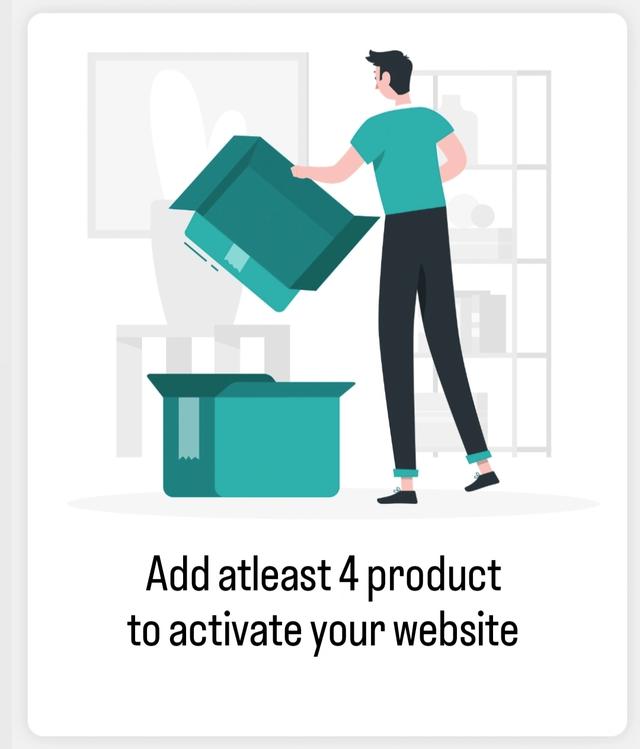
- Add at least 4 stocks to your inventory.
- These stocks will be displayed on your website.
Step 2: Set Your Location
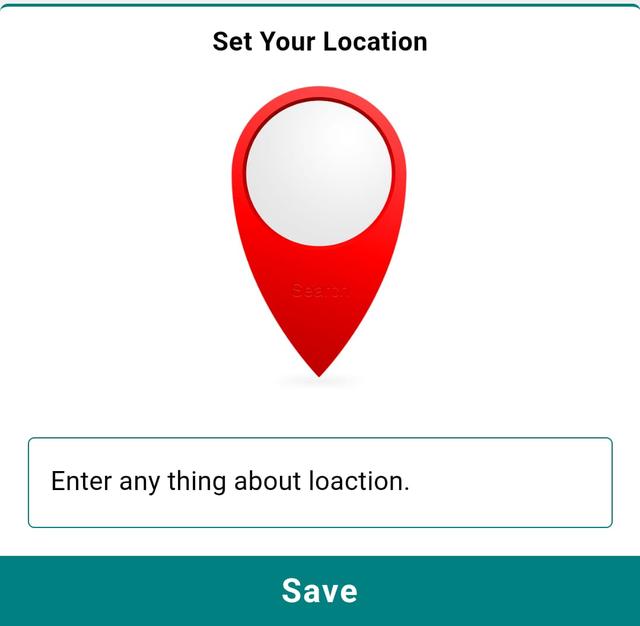
- Set your shop location correctly.
- This helps customers identify where your store is located.
Step 3: Turn ON Your Website
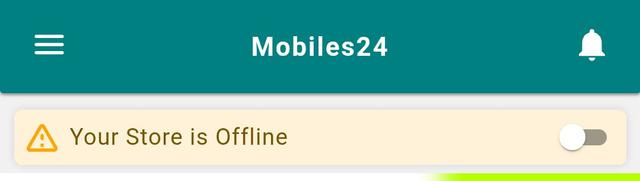
- Find the option that says “Your Site is Offline”.
- Turn the toggle ON.
- Your status will change to “Your Site is Online”.
Step 4: Website is Live
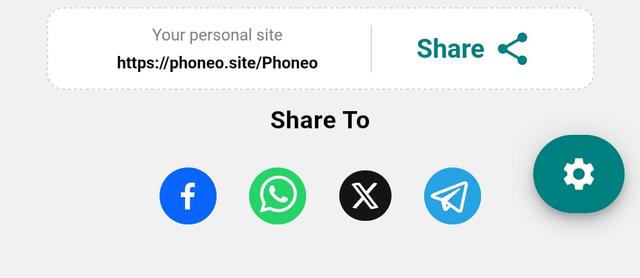
- Your personal website is now active.
- All your added stock will automatically appear on your website.
- Any new stock you add will also reflect instantly.
Step 5: Share Your Website
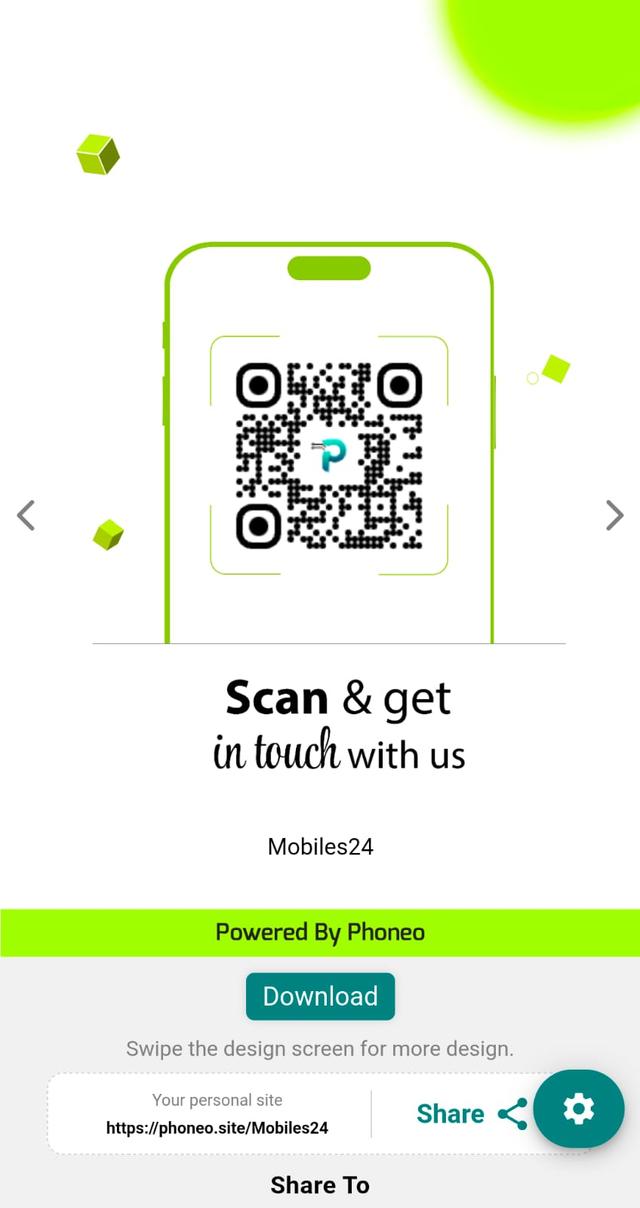
- Share your website link or QR code.
- You can share it on:
- Other social media platforms
- Customers can directly view your stock online.
Final Note
Your website is your digital showroom — always open, always working. It builds trust, looks professional, and helps you attract more customers without extra effort.