

Set Password (MPIN) – Step-by-Step Guide
Follow these simple steps to set your secure 4-digit MPIN and protect your account.
Step 1: Open Menu
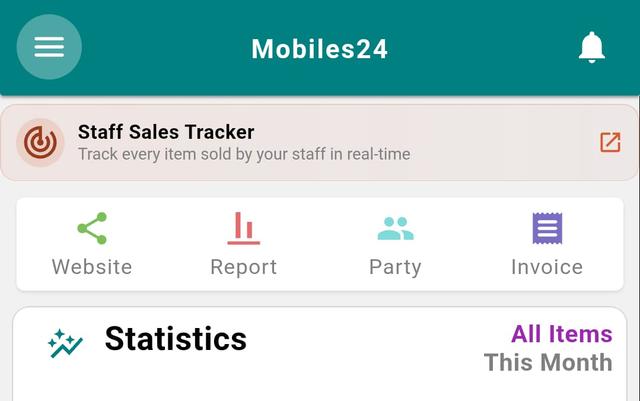
- Go to the Home page.
- Tap the Menu (☰) button.
Step 2: Open Settings
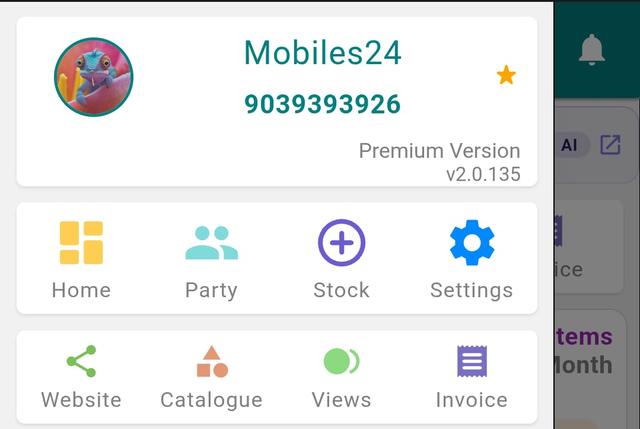
- Tap the Settings icon.
Step 3: Open Change MPIN

- Tap on Change MPIN.
Step 4: Enter New MPIN
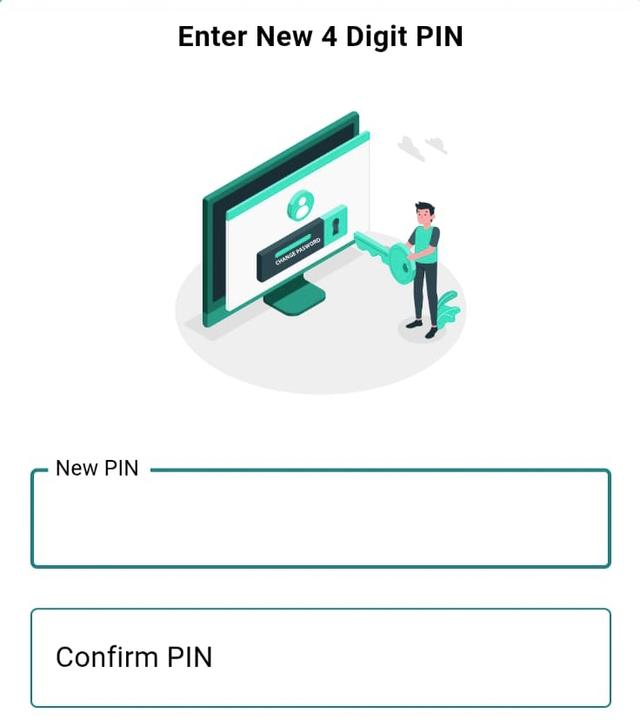
- Enter your new 4-digit MPIN.
- Re-enter the same MPIN in Confirm MPIN.
Step 5: Save MPIN
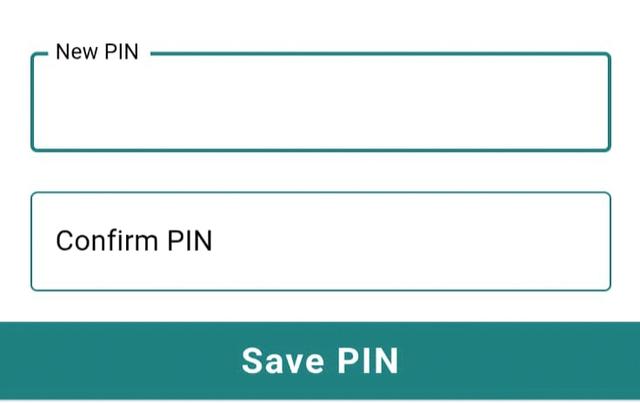
- Tap Save PIN.
- Your password (MPIN) is now set successfully.
Why Setting an MPIN Secures Your Mobile Shop Account
Your Phoneo account holds the heart of your mobile shop – IMEI-wise stock, GST and non-GST bills, customer udhari records, repair job cards and staff management. Setting a 4-digit MPIN adds a quick login lock so only you and trusted staff can open the app on a shared counter phone or tablet. It is the simplest way to keep your billing data, vendor details and customer ID proofs safe from casual access while your shop stays busy.
Tips for a Safe MPIN
- Avoid easy combinations like 1234, 0000 or your shop phone number's last digits.
- Never share your MPIN over chat – give staff their own login instead.
- Change your MPIN immediately if a staff member leaves your shop.
- Pick digits you can remember without writing them down near the counter.
- Combine MPIN with your device lock for an extra layer of protection.
Related Help & Features
- IMEI-wise stock tracking – keep every handset accounted for behind your MPIN.
- GST billing software – secure, compliant invoices for your mobile shop.
- Udhari & credit recovery – protect sensitive customer credit records.
- Staff salary & permissions – manage who can access your shop data.
- More Phoneo setup tutorials
Ready to run your shop with confidence? Explore Phoneo plans or open the app at mobile.phoneo.in and set your MPIN today.
Final Note
A strong MPIN is like a silent guard—always present, always protecting. Keep it secure.