

Profile Setup - Step-by-Step Guide
Use this section to complete your shop profile so that all your shop address, bills and details show correctly.
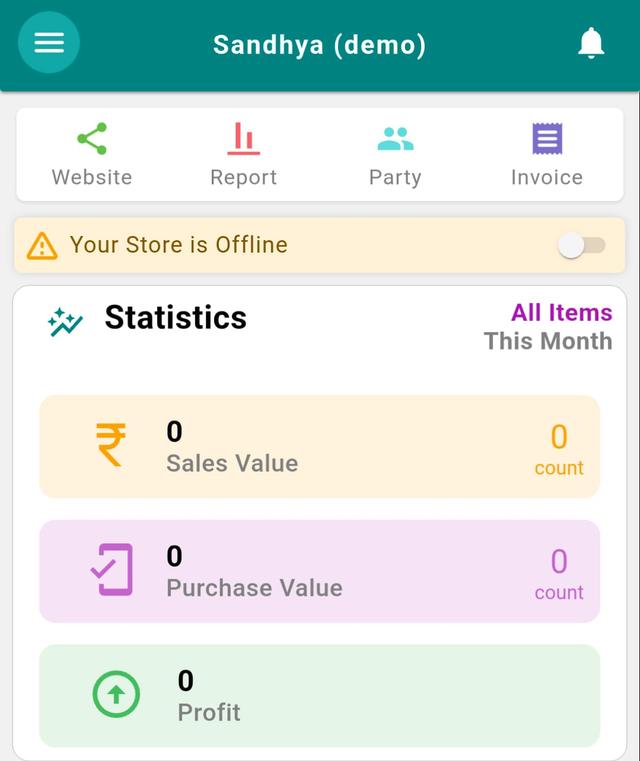
Step 1: Open your Phoneo account
- 1.Tap the menu icon (three lines) in the top-left corner.
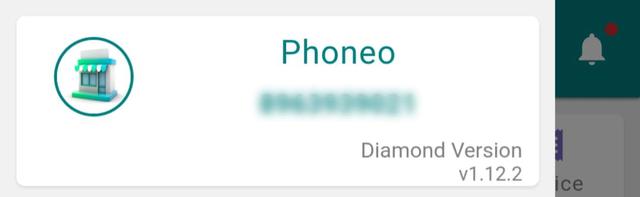
- 2.At the top of the menu, tap on your Shop Card(the box showing your shop name, mobile number, and app version).This will open your Profile Page.
Step 2: Set Your Profile / Shop Photo
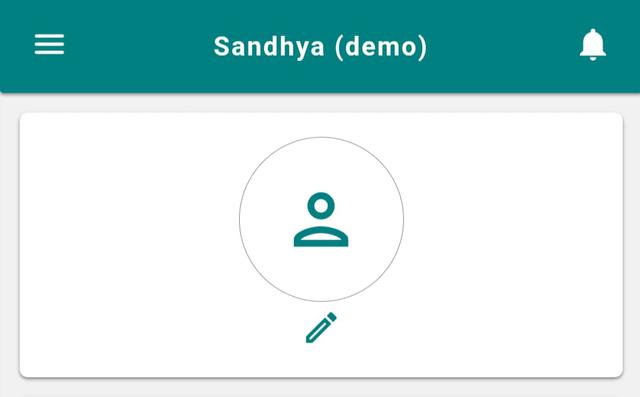
- 1.On the top of the profile screen, tap on the profile picture area.
- 2.Choose and upload your photo or your shop's photo.
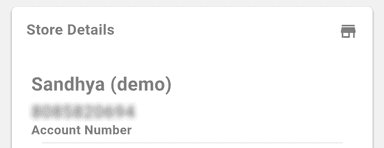
Step 3: Check Your Shop Name
You will see your Shop Name already filled.
This is the same name you entered at the time of login / registration. If it's correct, leave it as it is.
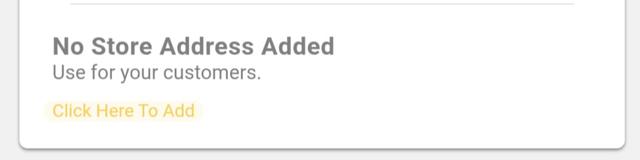
Step 4: Enter Your Store Address
- 1.In the Store Address field, enter your shop's full address(building/plot no., area, city, state, pincode).
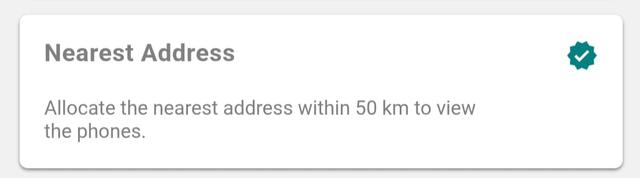
Step 5: Add Nearest Address / Landmark
This helps customers easily find your shop.
- 1.Tap on the "Nearest Address" tab.
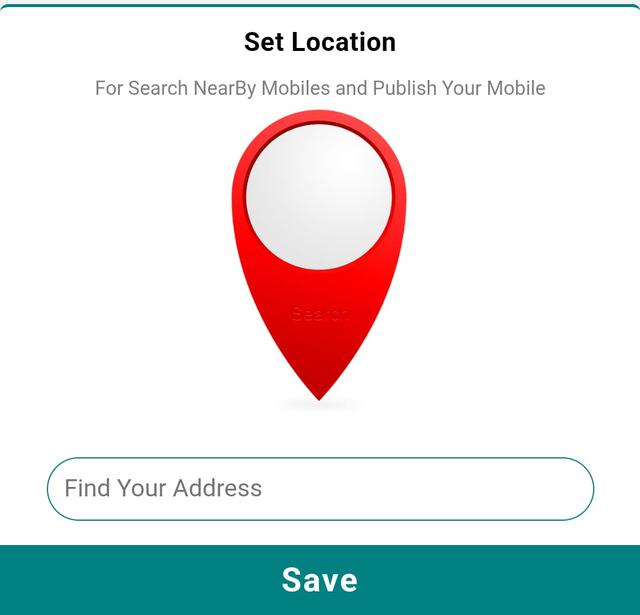
- 2.In the search bar, search your shop's nearby location(famous point, landmark, square, etc.).
- 3.Select the correct location from the list.
- 4.Tap Save.
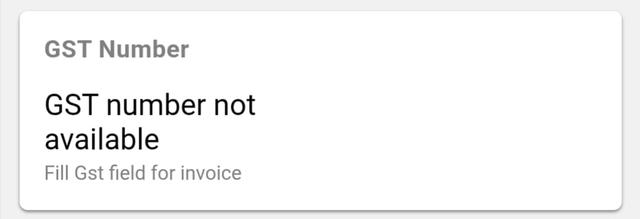
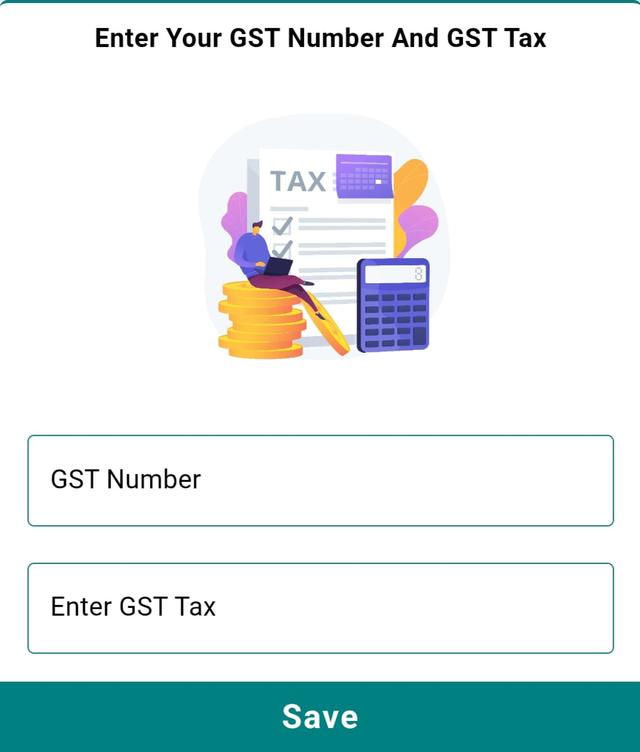
Step 6: Add Your GST Number (Optional)
- 1.Tap on the card
- 2.In the GST Number field, enter your GSTIN if you have one.
- 3.This GST number will be used on your GST invoices.
- 4.If you don't have GST, you can skip this field.
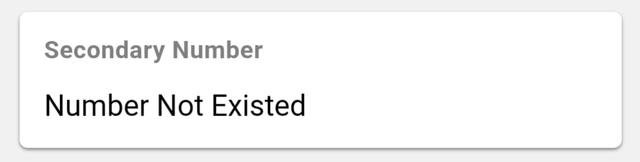
Step 7: Add Secondary Mobile Number (Optional)
- 1.In the Secondary Number field, enter another mobile number(partner's number, alternate shop number, etc.)if you use any.
- 2.This helps customers reach you if the primary number is not available.
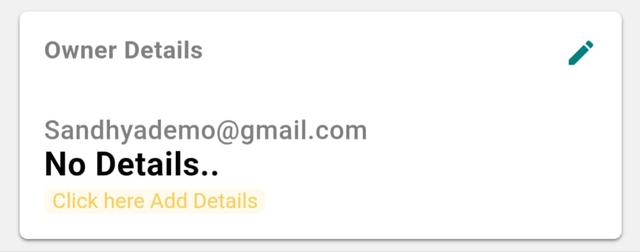
Step 8: Fill Owner Details
- 1.Tap on the card showing owner details
- 2.Tap on the "Owner Details" tab.
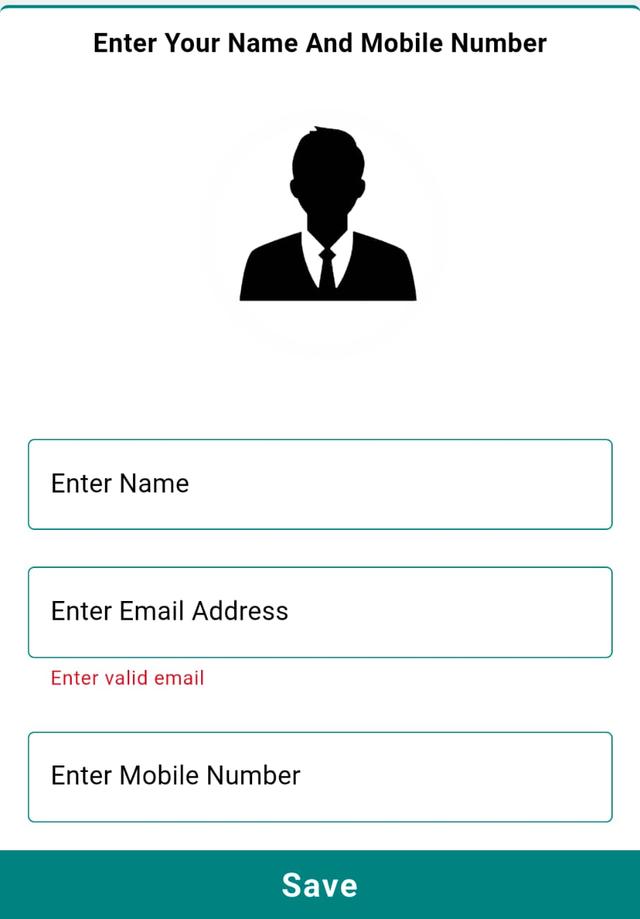
- 3.Fill the required fields:
- Owner Name
- Email ID
- Mobile Number
- 4.After filling all details, tap Save.
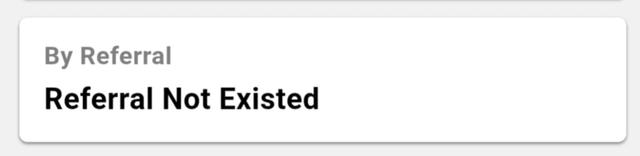
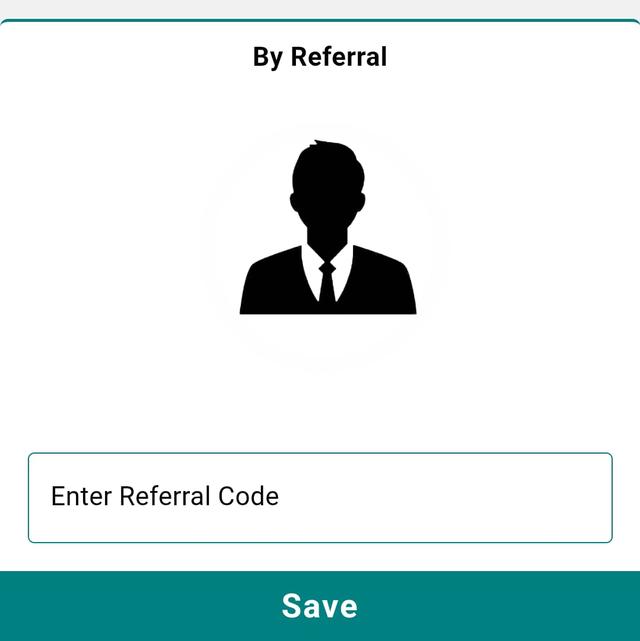
Step 9: Enter Referral Code (If Any)
- 1.Go to the "Referral" tab.
- 2.If you have any referral code, enter it in the given field.
- 3.Tap Save / Apply.
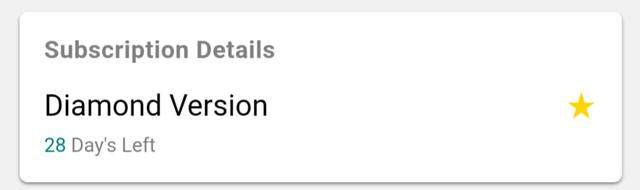
Step 10: View Your Subscription Details
- 1.Open the "Subscription Details" tab.
- 2.Here you can see which subscription is currently active on your account.
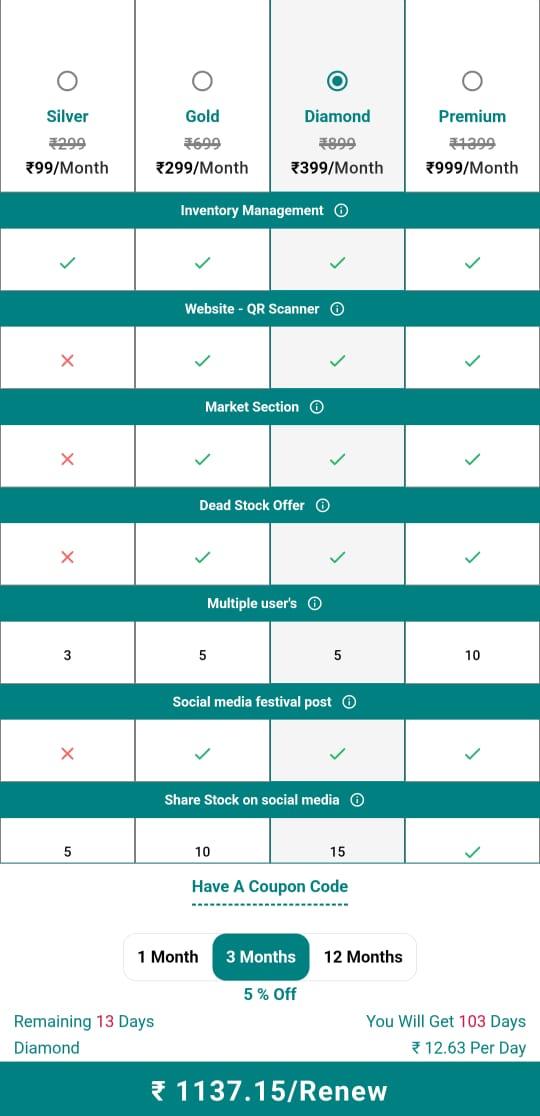
Step 11: Check Subscription History
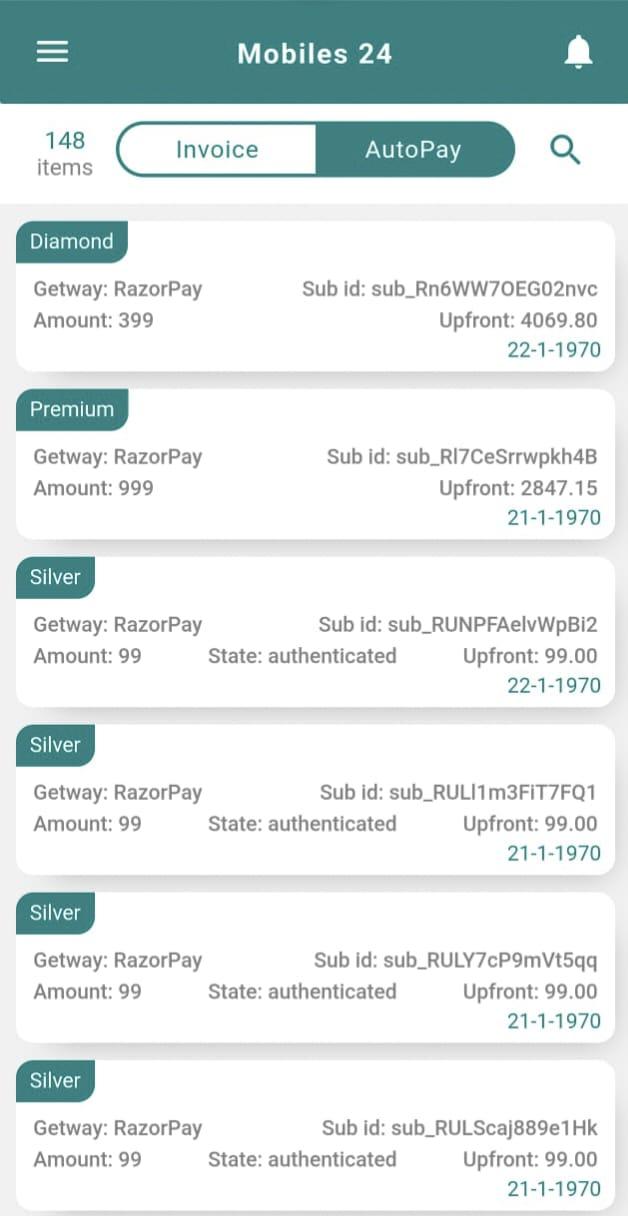
- 1.Go to the "Subscription History" tab.
- 2.Here you can see all your previous subscriptions and their expiry dates / durations.
Final Check
Make sure all the details are correct and saved on each tab.
Once done, your profile setup is complete and ready to use for inventory, billing and other features.
Why Set Up Your Mobile Shop Profile in Phoneo
Setting up your mobile shop profile in Phoneo is the first step before you start GST & non-GST billing, IMEI-wise stock tracking and repair job-card management. The shop name, address, GSTIN and owner details you save here appear automatically on every invoice and on your QR online store, so your customers and vendors always see correct, professional details. Because Phoneo is built only for mobile shops — new phones, second-hand handsets, accessories and repair — the profile fields are tailored to how Indian mobile retailers actually work.
Tips for a complete profile setup
- Enter your full shop address with city, state and pincode so bills and your online store show the right location.
- Add a nearby landmark in the Nearest Address tab to help walk-in customers find your shop easily.
- Add your GSTIN only if you are GST-registered — it will then print on your GST invoices automatically.
- Upload a clear shop photo and fill owner details to build trust with customers and vendors.
- Check the Subscription Details tab so you always know which plan is active on your account.
Related Guides & Features
Once your profile is ready, explore the tools that help you run your mobile shop end to end:
- GST billing software for mobile shops
- IMEI-wise stock tracking
- Repair & job-card management
- Staff salary & permissions
- All Phoneo tutorials
Ready to put your profile to work? See Phoneo plans starting at just Rs 99/month with a 7-day free trial, or open the Phoneo app and finish your setup now.