

Second-Hand Phone Purchase - Step-by-Step Guide
Use this flow to add a used phone into your stock so pricing, notes, photos, and IMEI details are captured correctly.
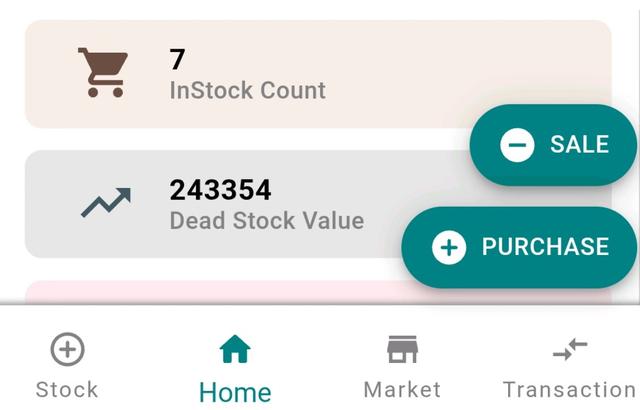
Step 1: Start a New Purchase
- 1.Open the app and go to the Home page.
- 2.Tap on Purchase.
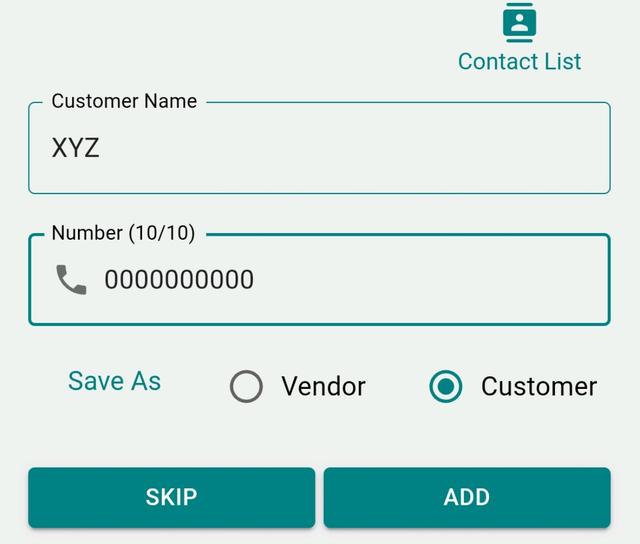
Step 2: Add Party Details (Optional)
- Enter Name or Mobile Number.
- Select whether the party is a Customer or Vendor.
- You may select directly from contacts.
- You can skip this step if needed.
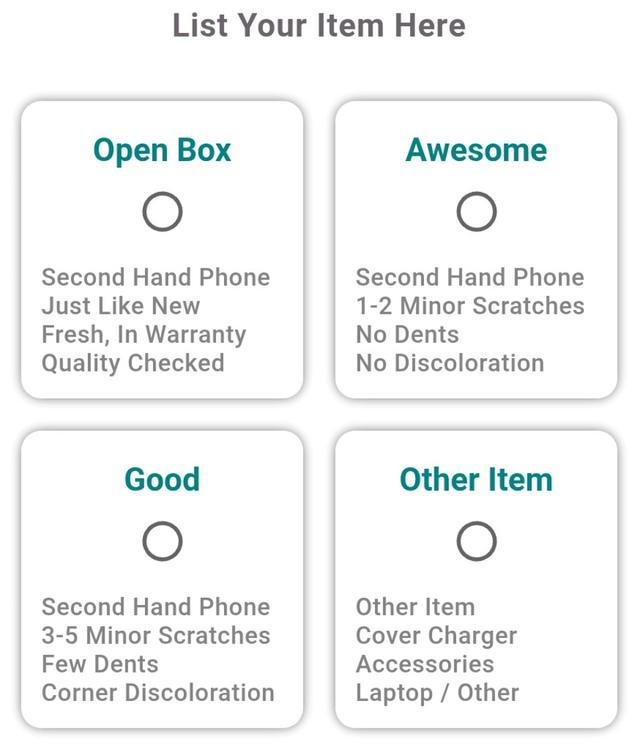
Step 3: Choose Phone Condition (Second-Hand)
- 1. Select the phone condition from the available options:
- Open Box - Like new, in warranty
- Awesome - Minor scratches, no dents
- Good - Visible scratches and corner wear
- 2. Tap the condition you want to apply.
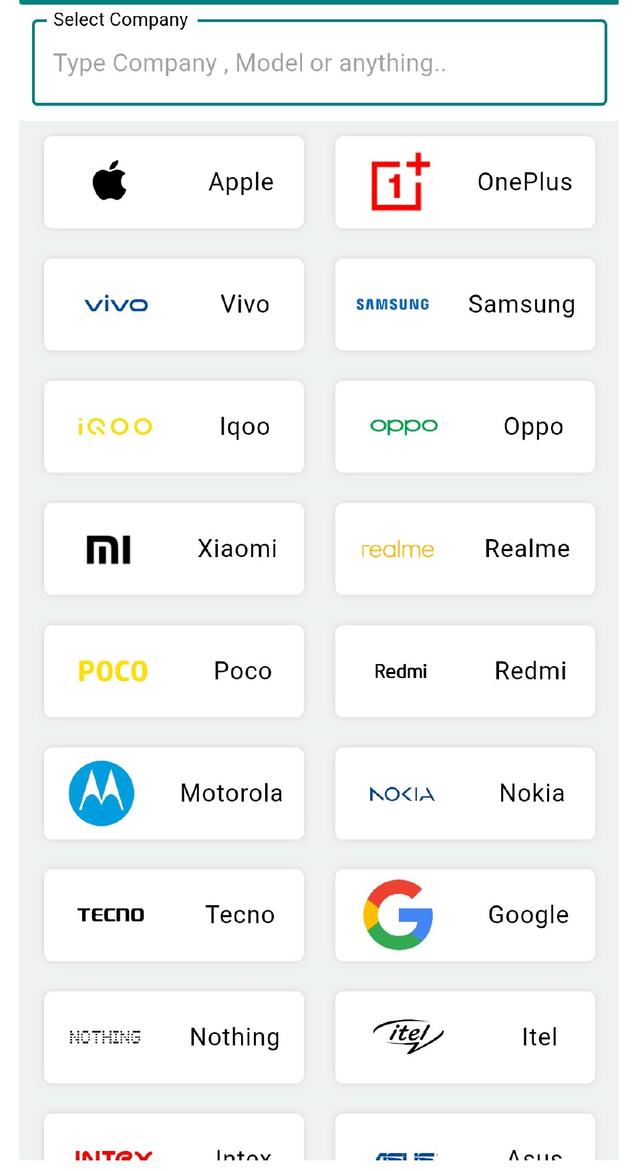
Step 4: Select Company (Brand)
- Tap Company.
- Search the brand name if required.
- Select the correct brand.
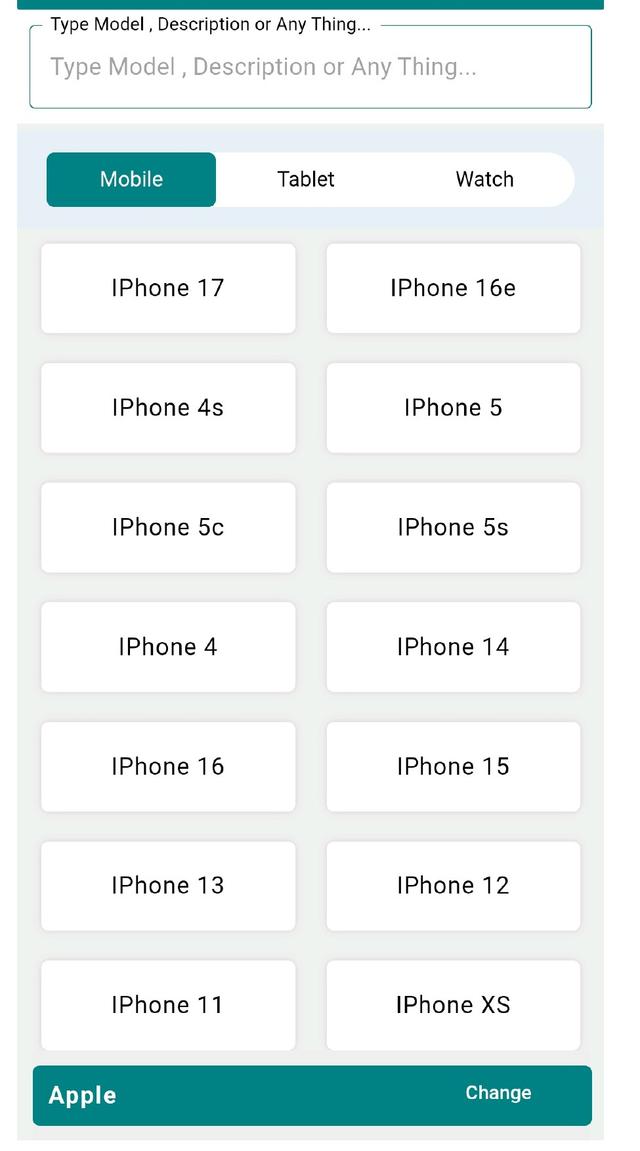
Step 5: Select Model
- Tap Model.
- Search the model name.
- Select the correct model.
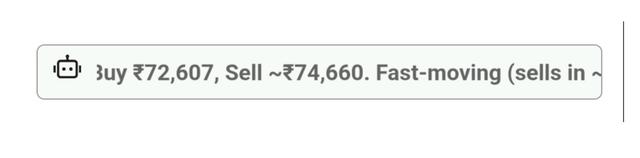
Step 6: Check AI Suggestions
- On the next screen, look at the AI-generated suggestion shown at the top.
- Use it as guidance for what to keep in stock and suggested Buy / Sell pricing.
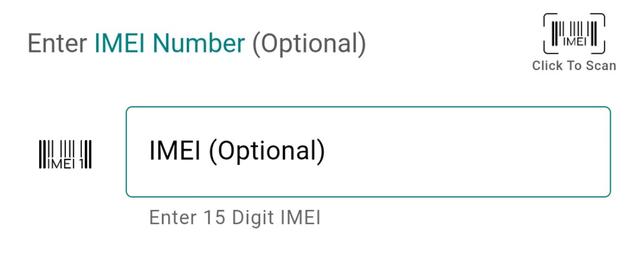
Step 7: Add IMEI Details (Optional)
- Scan IMEI or enter manually.
- You can add both IMEIs if available.
If you don't want to add IMEI now, you can skip
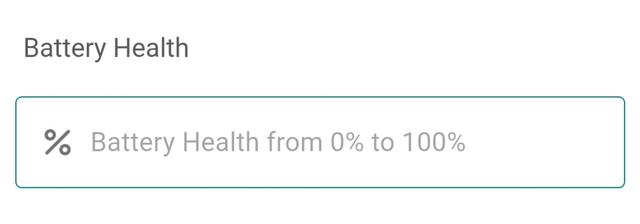
Step 8: Enter Battery Health (Mandatory for iPhone)
Battery health is required when the selected phone is an iPhone.
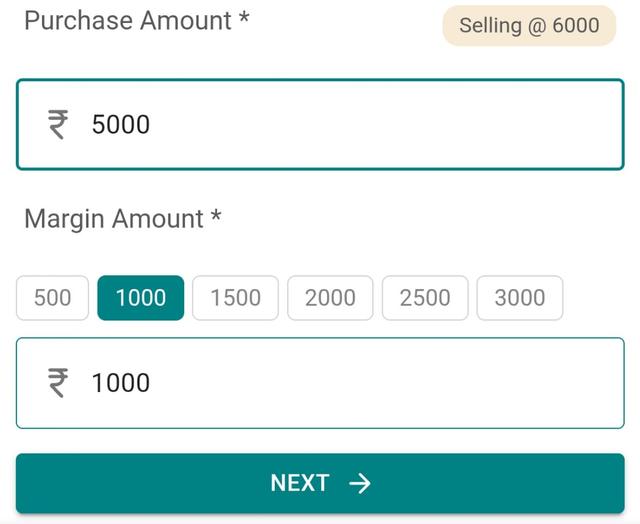
Step 9: Enter Purchase Amount
- In Purchase Amount, enter the price you are paying for the phone.
- Next, enter the margin amount.
- The margin amount is the extra price you add to the purchase amount to earn profit when selling the phone.
- The selling amount is auto-calculated by adding purchase and margin amounts.
- Tap Next.
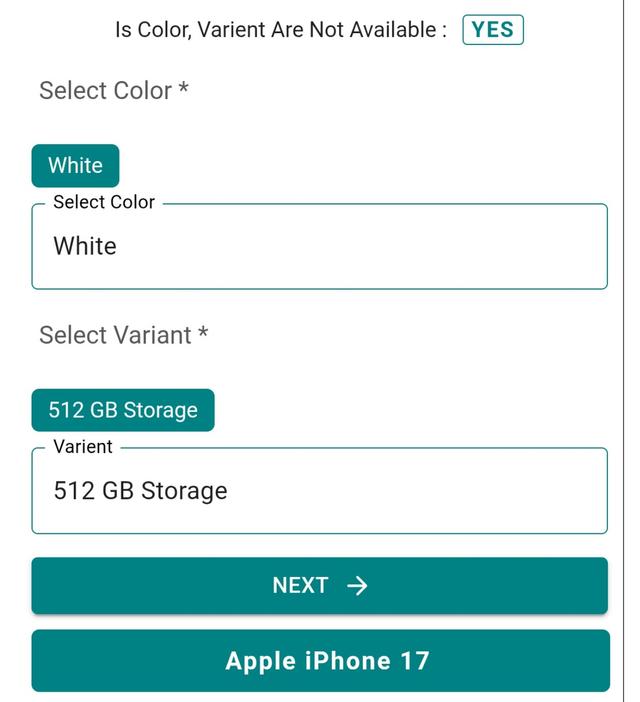
Step 10: Choose Color and Variant
- Select Color from the available options (pre-filled).
- Select Variant from the available options (pre-filled).
- Tap Next.
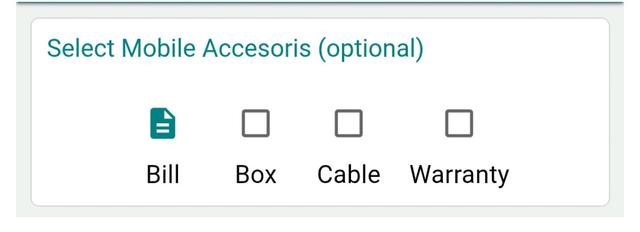
Step 11: Select Included Accessories (Optional)
- Select accessories available with the phone (if any), such as:
- Bill, Box, Cable, Warranty (optional).
- Continue to the next step.
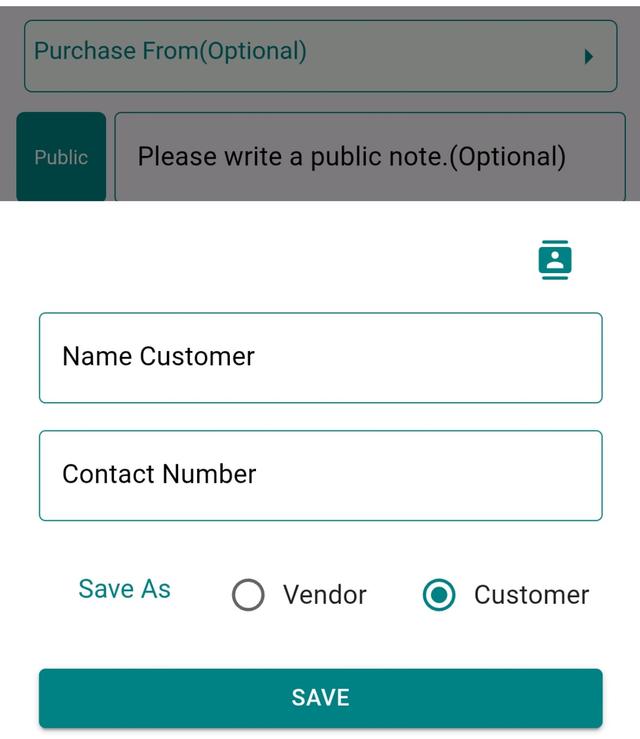
Step 12: Add Customer Details.
If you skipped party details in Step 2, enter Customer Name and Customer Number here.
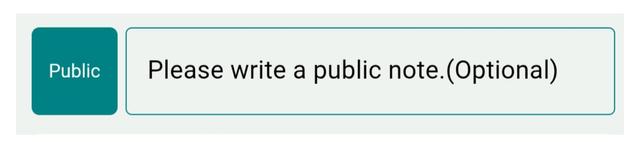
Step 13: Add Notes (Public / Private)
Public notes are visible to customers. Private notes are for internal use.
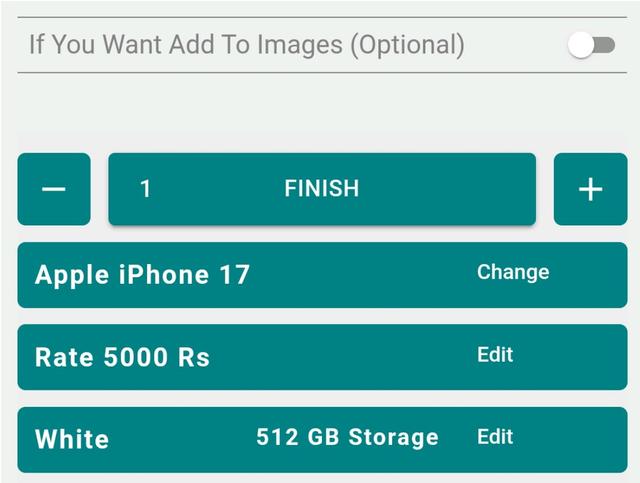
Step 14: Finish Without Images
If you don’t want to upload images, tap Finish to complete the purchase entry.
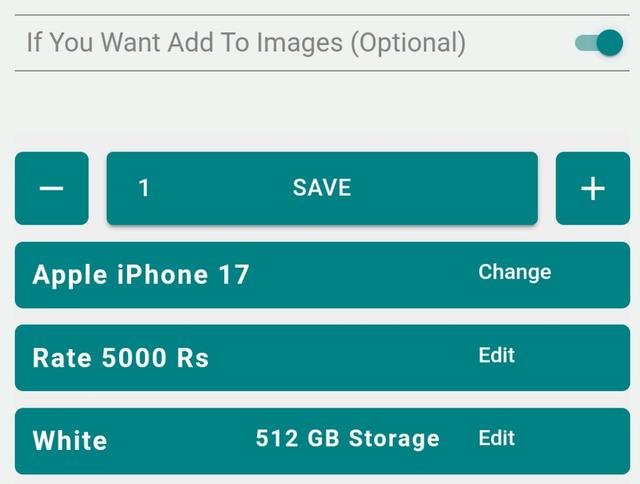
Step 15: Save With Images (Optional)
- Turn ON the image toggle if you want to add photos.
- Tap Save.
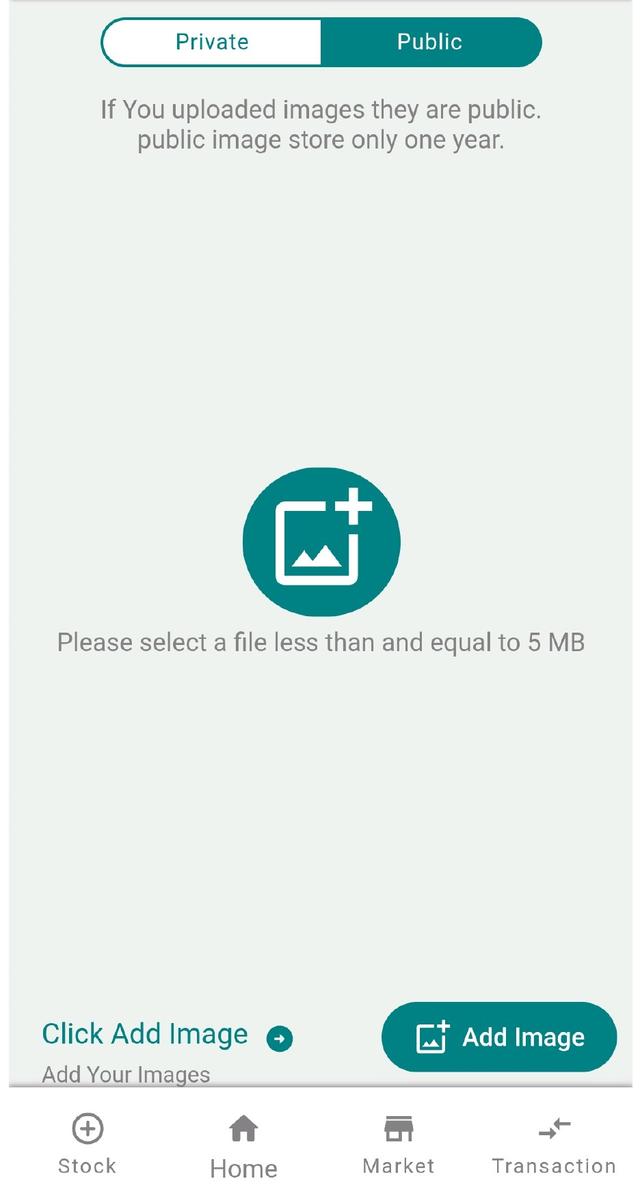
Step 16: Upload Public & Private Photos
- Click on Add image.
- Upload using Camera (click live photo) or Gallery (select existing).
- Upload Public Photos (phone photos visible to customers).
- Upload Private Photos (customer ID, bills, proofs — visible only to you).
- Rotate the image as needed and set it as the thumbnail.
- Then click on save.
- Tap stock to complete.
- You can see your stock here.
Final Check
Confirm each screen is saved properly.
Once saved, the phone is ready for inventory, pricing, and customer-facing display.
Why Add Phone Purchase Stock With IMEI in Your Mobile Shop
Every used or new handset you buy should be entered as purchase stock the moment it reaches your counter. Logging the IMEI, condition, battery health, purchase amount and margin at the buying stage turns a loose pile of phones into searchable, traceable inventory. For an Indian mobile shop this is what keeps your second-hand stock register clean: you always know which IMEI was bought from which party, at what cost, and what selling price was set. IMEI-wise tracking also makes resale, warranty claims and police ID checks far easier, and it removes the guesswork when you reconcile cash, udhari and profit at month end.
Tips & Why It Matters
- Scan or type the IMEI carefully — one wrong digit breaks stock search and resale tracking later.
- Record honest condition and battery health so the selling price you quote a customer is fair and disputes stay rare.
- Enter purchase amount and margin together so profit is calculated automatically, not estimated from memory.
- Capture the party (customer or vendor) details and ID proof to keep a clean buying trail for second-hand handsets.
- Add public and private photos so each phone has proof of its condition at the time of purchase.
Related Guides & Features
- IMEI-wise stock tracking
- IMEI-based stock audit
- Smart inventory management
- AI smart pricing engine
- GST billing software for mobile shops
Ready to manage your full phone purchase and inventory flow in one place? See Phoneo pricing and start your 7-day free trial, or open the app at mobile.phoneo.in.