

Personal Website Settings – Step-by-Step Guide
Use this section to customize your personal website, control what customers see, and make your store look more professional online.
Step 1: Open Website Settings
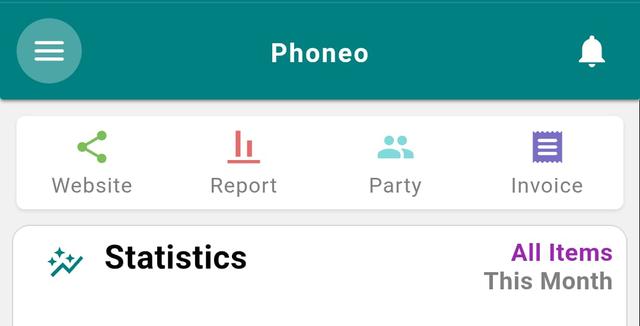
- Go to the Home page.
- Tap the Menu (☰) button.
- Tap on Website.
- Tap the Settings icon.
Step 2: Control Website Visibility
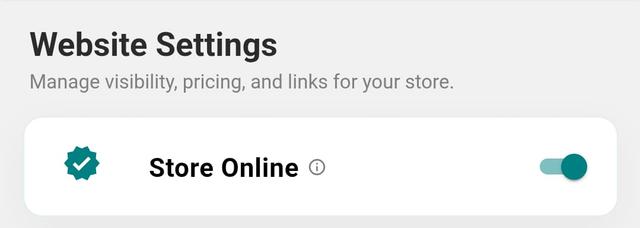
- Store Online
- Toggle ON → Website goes Online
- Toggle OFF → Website goes Offline
- QR Code Website / Stock Visibility
- Toggle ON → Stocks visible on website
- Toggle OFF → Stocks hidden
Step 3: Choose What to Show
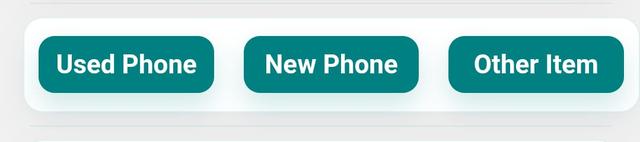
- Select categories to display:
- Second-hand Phones
- New Phones
- Other Accessories
- You can choose one, multiple, or all.
- This controls what customers see on your website.
Step 4: Enable Finance Banner
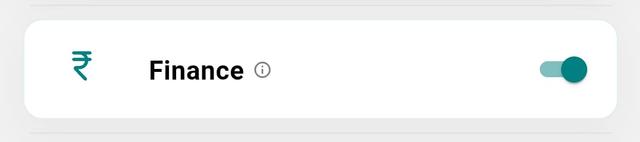
- Finance Option
- Toggle ON → Finance banner appears on your website.
- Helps attract customers looking for EMI/finance options.
Step 5: Manage Price Visibility
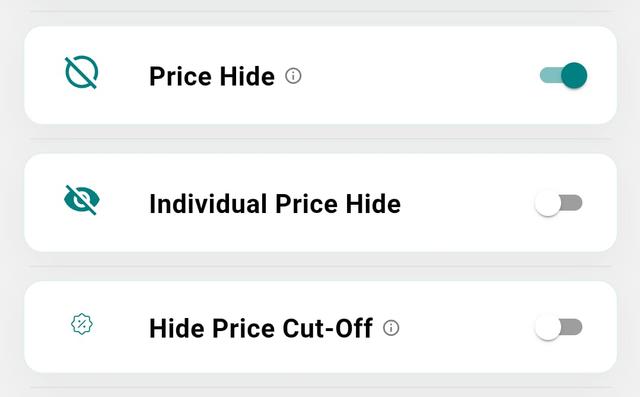
- Price Hide → Hide all product prices
- Individual Price Hide → Hide price for selected items
- Hide Cut-off Price → Hide discount/cut price
Step 6: Apply Theme & Style
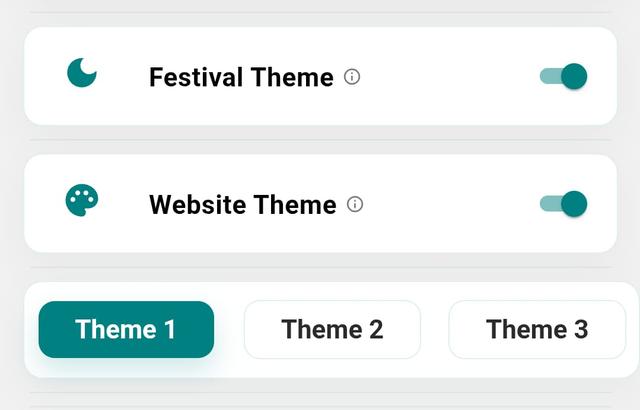
- Festival Theme → Toggle ON for auto seasonal themes
- Website Theme Selection → Choose from available themes
Step 7: Add Store Branding
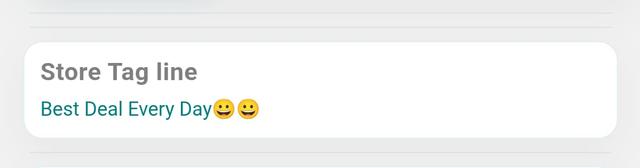
- Enter your Store Tagline.
Step 8: Add Social Media Links
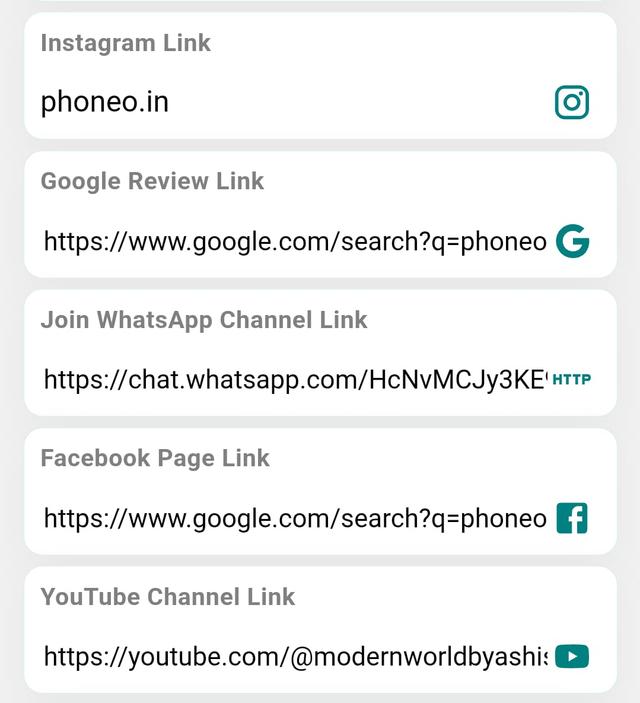
- Add your links:
- Google Reviews
- WhatsApp Channel
- YouTube
Step 9: Add Contact Details
- Enter Primary Number
- Enter Secondary Number (optional)
Step 10: Save Settings

- Tap Save.
- Your website is now updated and ready.
Why Customising Your Online Store Settings Matters
Your Phoneo website settings turn your stock list into a proper online store for your mobile shop. By customising your online store website settings — visibility, categories, price display, theme and store branding — you decide exactly how new phones, second-hand handsets, accessories and repair offers appear to customers who scan your QR code or search for your shop in your city. A well set-up store builds trust, brings in walk-ins, and lets buyers check stock before they reach the counter.
- Look professional: a clean theme, tagline and contact details make a small mobile shop look established and reliable.
- Control what shows: hide prices, hide cut-off price, or show only the categories you want — useful in a competitive market.
- Get found locally: linked Google Reviews and social profiles help customers across India trust and reach your store.
- Sell more: the finance banner and QR online store invite EMI buyers and let customers browse stock anytime.
- Stay flexible: toggle the store online or offline in seconds whenever your stock or working hours change.
Related Guides & Features
Explore more of what Phoneo can do for your mobile shop:
- Digital storefront with QR code
- Social media post generator
- Online catalog management
- IMEI-wise stock tracking
- More Phoneo tutorials & guides
Ready to give your mobile shop a professional online store? Start your 7-day free trial in the Phoneo app or compare Phoneo pricing plans to pick the right fit for your shop.
Final Note
Your website is not just a listing page — it’s your online identity. Control what you show, how you show, and let your store speak for itself.