

Sell Single Stock & Generate Bill – Step-by-Step Guide
Use this flow to sell a single stock item (used phone, new phone, or accessories) and generate a bill / invoice smoothly.
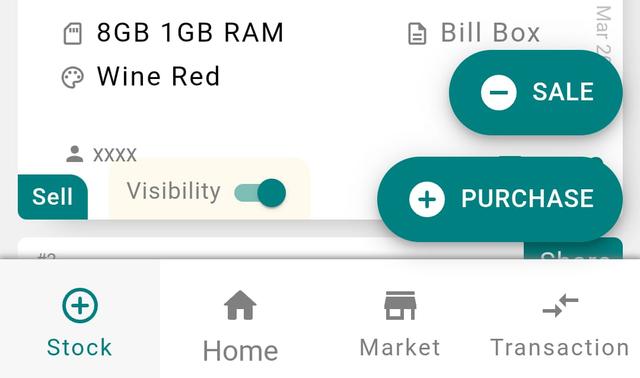
Step 1: Open Stock Page
- 1.From the Home page, tap Stock in the bottom menu.
- 2.You will be redirected to the Stock page.
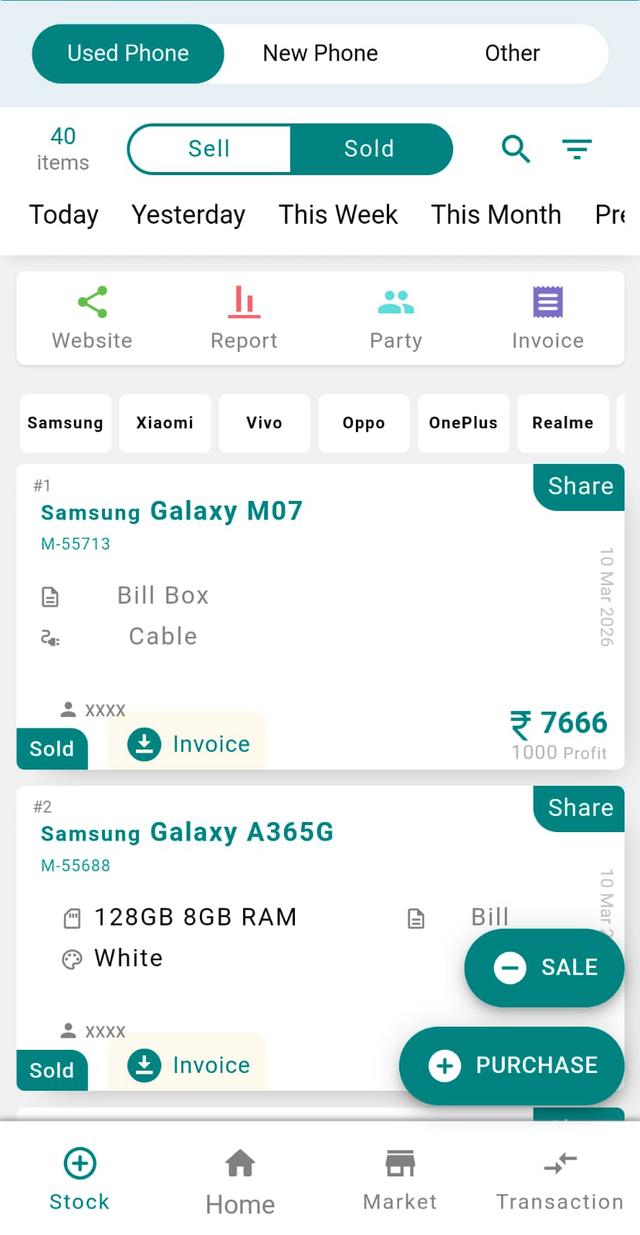
Step 2: Choose Stock Type
Select the tab based on what you want to sell:
- Used Phone
- New Phone
- Other Item / Accessories
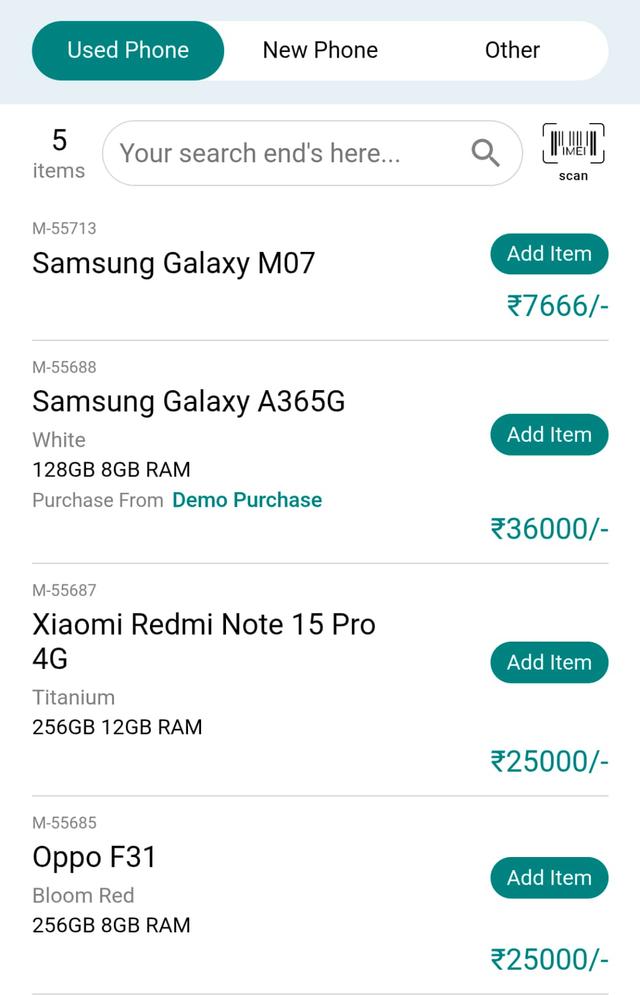
Step 3: Locate the Stock
- 1.You will see a list of stock cards.
- 2.Each stock card has a Sell button at the bottom-left corner.
- 3.You can also open the stock card and tap the Sell button at the bottom-right.
- 4.Tap Sell from either place to continue.
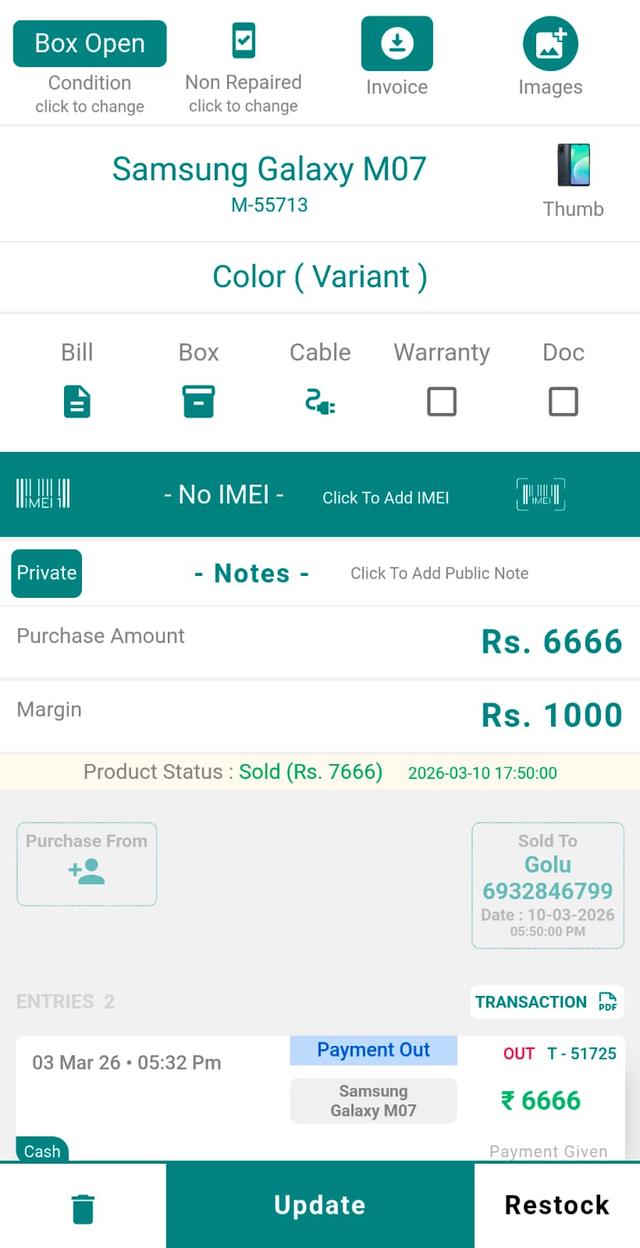
Step 4: Review Selected Stock
After tapping Sell, the selected stock card will appear on the screen.
- If you want to change the selling price, tap the Pen (Edit) icon.
- Update the selling price and save the changes.

Step 5: Add Customer Details
- 1.In the top-left corner, tap Add Customer.
- 2.Enter the Customer Name and Mobile Number.
- 3.Save the customer details.
Step 6: Add More Items (Optional)
At the bottom footer, you will see two options:
- Add
- Sell
- If you want to add more items to the same bill, tap Add.
- Select the additional item(s).
- Tap Preview & Bill to continue.
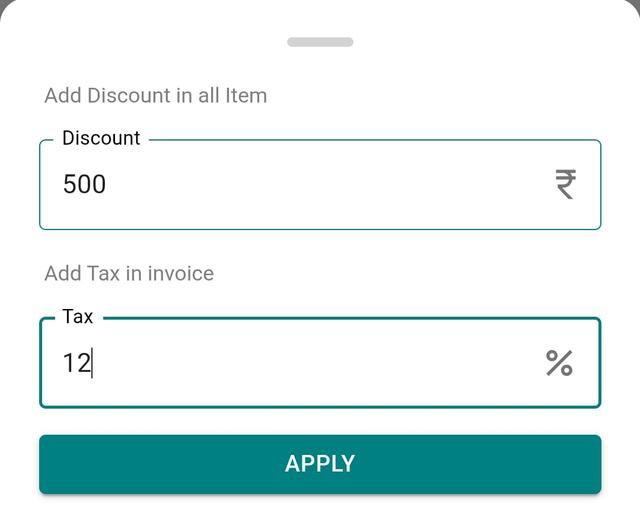
Step 7: Apply Discount or Tax (Optional)
- Tap Discount / Tax.
- A box will appear with two fields:
- Discount Amount
- Tax Amount
- Enter the values if needed.
- Tap Save.
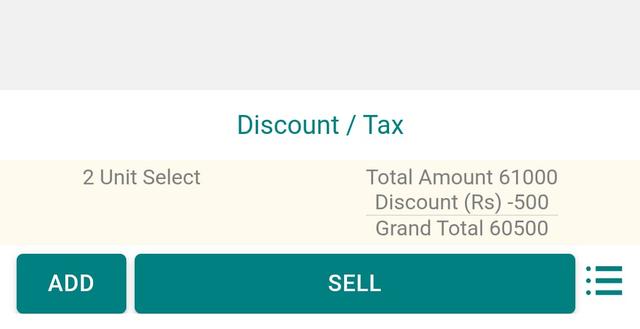
Step 8: Sell Without Invoice
If you only want to complete the sale without generating an invoice:
- Tap Sell.
- The stock will be marked as sold.
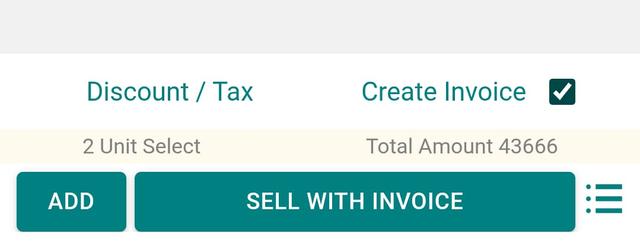
Step 9: Sell With Invoice
- Enable the Create Invoice checkbox.
- Tap Sell with Invoice.
- The invoice will be generated instantly.
Step 10: View Sold Stocks
- Go back to the Stock page.
- Tap the Sold tab.
- Here you can see all sold stocks along with their details and invoices.
Selling a Single Phone with IMEI-Wise Billing
When you sell a single phone in Phoneo, the handset's IMEI number is captured on the bill itself. This IMEI-wise billing ties every invoice to the exact device that left your shop, so your mobile shop stock and your GST or non-GST sales stay perfectly matched. For Indian mobile retailers selling new phones, second-hand phones, or accessories, IMEI-based invoicing makes warranty claims, returns, and stock audits far easier to handle.
Why It Matters
- Each sold device is traceable by IMEI, so no two phones get mixed up in your records.
- Returns and warranty checks are quick — just search the IMEI to find the original invoice.
- Your live stock count updates the moment a phone is sold, preventing "ghost" inventory.
- GST and non-GST bills carry the right device details for clean accounting.
- Customer name and mobile number stay linked to the sale for future follow-ups and udhari recovery.
Related Pages
Explore more about billing and stock features built only for mobile shops:
- IMEI-wise stock tracking
- GST billing software for mobile shops
- Repair & job-card management
- IMEI-based stock audit
- See all Phoneo features
Ready to bill smarter? Try every feature free for 7 days — view Phoneo pricing plans or open the Phoneo app to start selling your stock today.
Final Note
This flow ensures fast selling, accurate billing, and clean records. Whether it’s a single phone or a mixed bill, the process stays simple, controlled, and professional.