

Sell Multiple Stocks in One Bill – Step-by-Step Guide
Use this process to sell multiple items in a single bill, customize your invoice settings, and manage your invoice history — all in one complete workflow.
Step 1: Start a New Sale
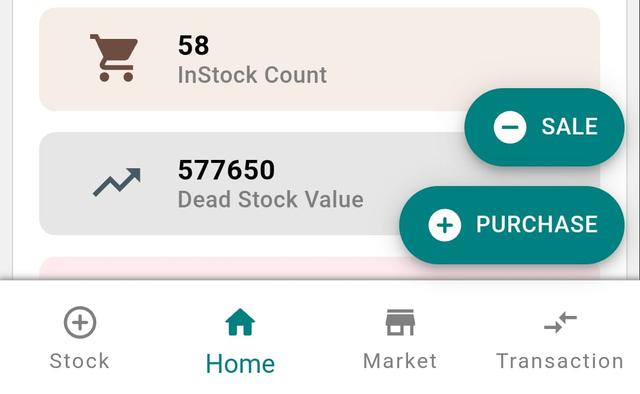
- Go to the Home page.
- Tap the Sale button at the bottom-right corner.
Step 2: Add Customer Details
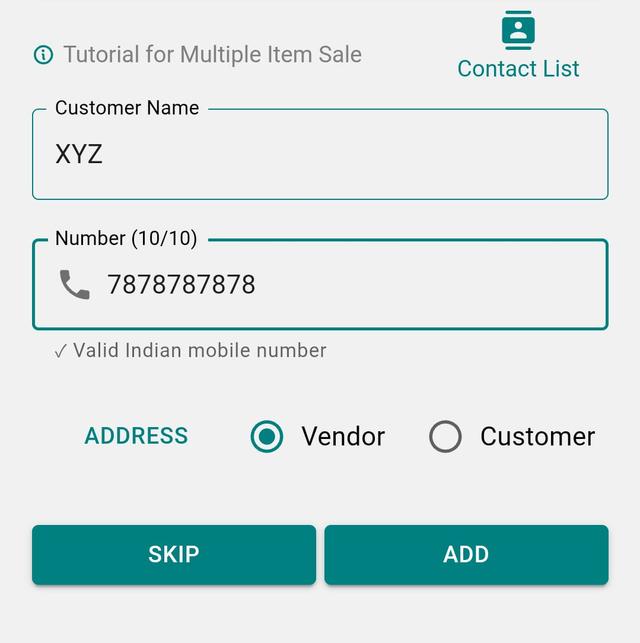
- Enter Customer Name and Mobile Number.
- You can also add Customer Address if needed.
- Select whether the party is Customer or Vendor.
- You can skip this step, but remember: Customer name and number are required to generate a bill.
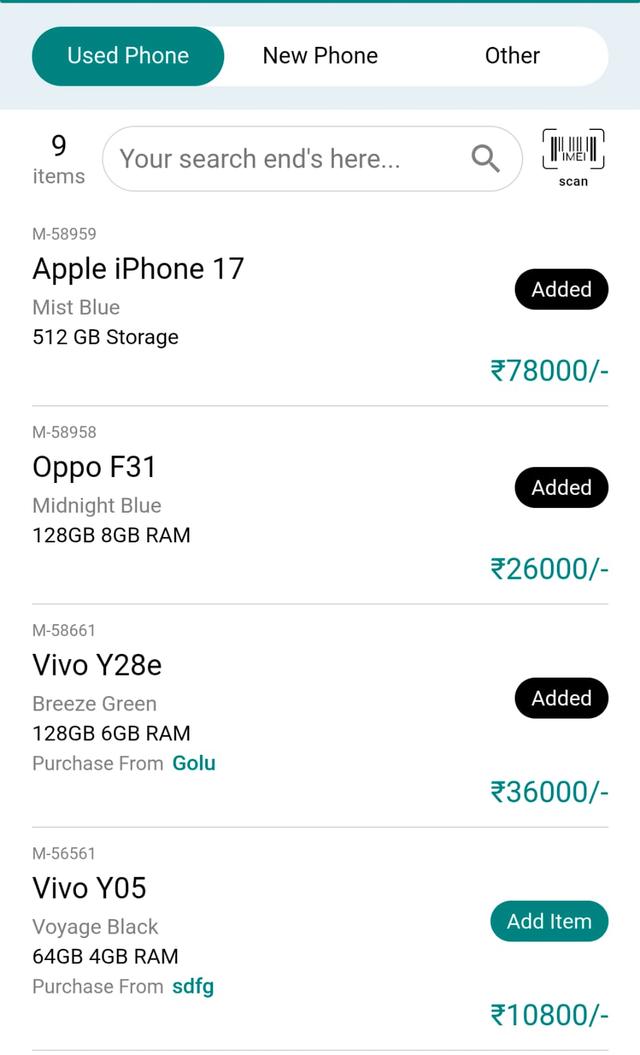
Step 3: Select Items From Stock
- Select items from your stock.
- Available categories include:
- Used Phone
- New Phone
- Other Items / Accessories
- You can also search using IMEI number.
Step 4: Edit Price (Optional)

Tap Edit below the item to update the selling price as needed.
Step 5: Continue to Bill Preview
Tap Preview / Bill once everything looks correct.
Step 6: Add Customer (If Skipped Earlier)

- Tap Add Customer at the top-left.
- Enter Customer Name and Mobile Number.
Step 7: Add More Items to the Same Bill
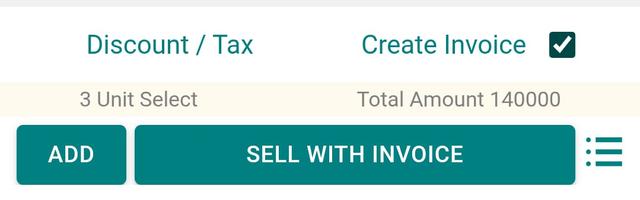
Tap Add (bottom-left) to include more products in the same bill.
Step 8: Apply Discount or Tax (Optional)
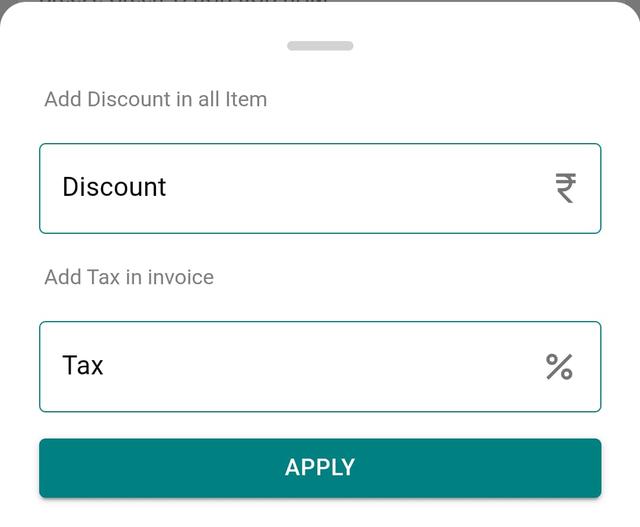
- Tap Discount / Tax.
- Enter Discount Amount and Tax Amount.
- Tap Apply.
Step 9: Generate Invoice
- Enable Create Invoice.
- Tap Sell with Invoice.
Step 10: Choose Invoice Design
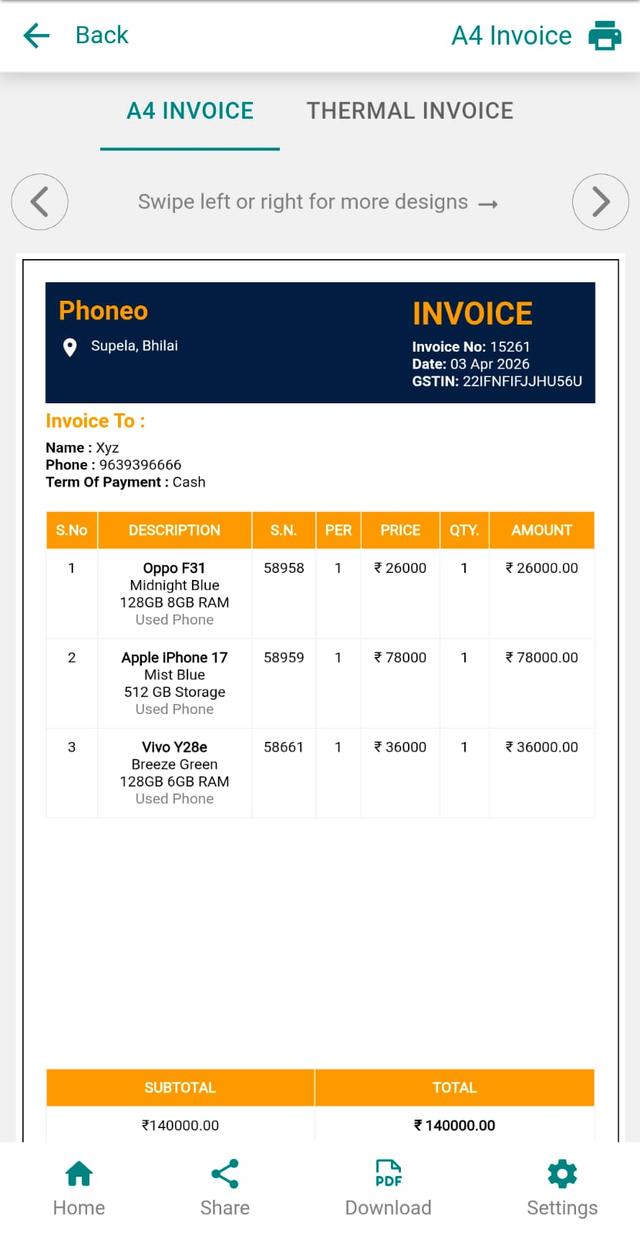
Select from multiple invoice templates based on your preference.
Step 11: Share the Invoice
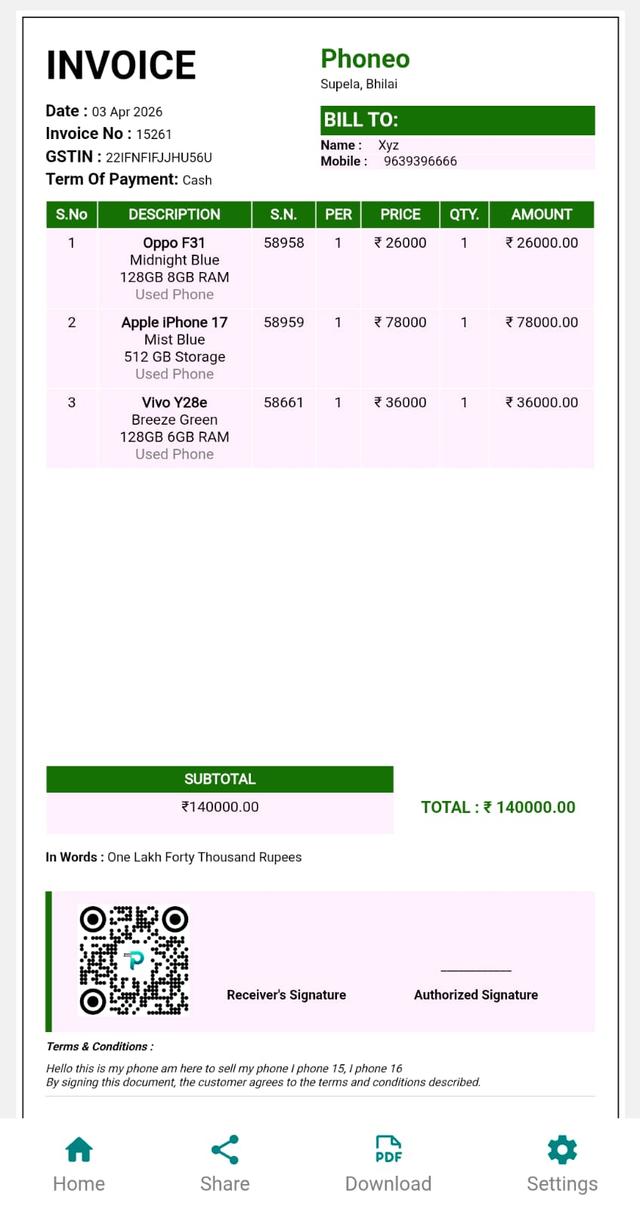
- Tap the Share button.
- Share via WhatsApp, Instagram, Telegram, etc.
Step 12: Download the Invoice
Tap Download to save the invoice on your device.
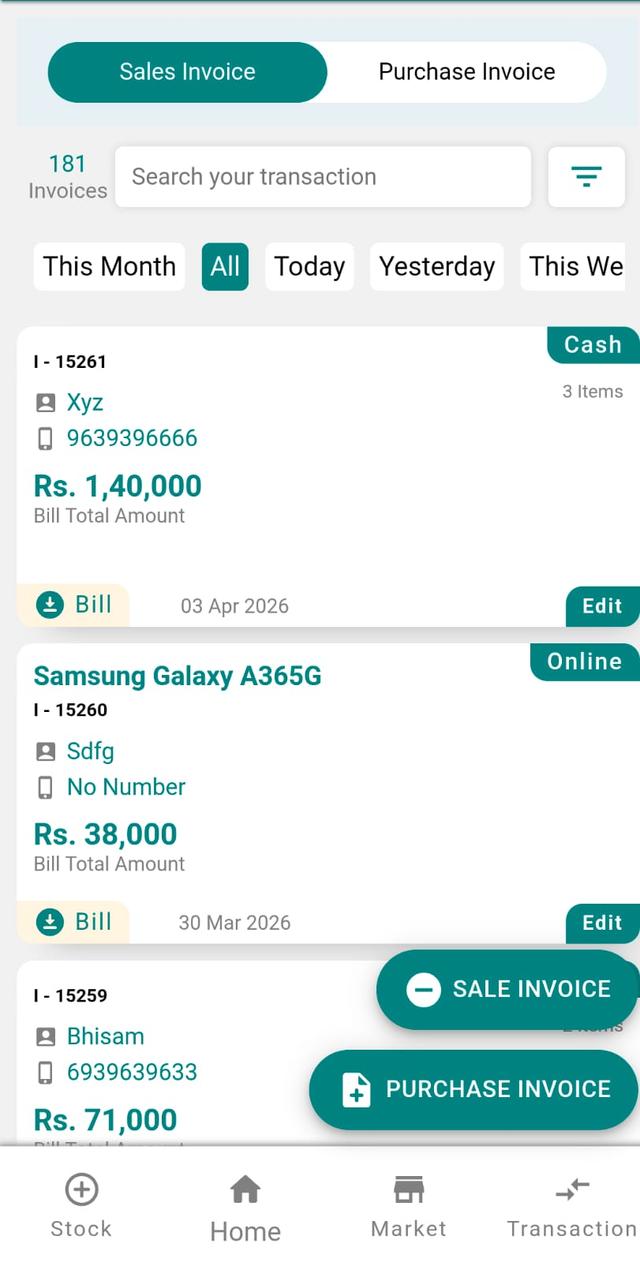
Step 13: View Invoice History
- Go to Home page.
- Open the Invoice tab.
- View all past invoices.
Why Selling Multiple Phones in One Invoice Matters
Mobile shops in India rarely sell just one item per customer. A single walk-in often buys a new phone along with a cover, screen guard, charger or earphones. Phoneo's multi-item billing lets you add every product — new phones, used phones, repairs and accessories — into one GST or non-GST invoice, so your bulk billing stays fast at the counter and your IMEI-wise stock updates automatically with each sale.
Tips for Faster Multi-Item Billing
- Search by IMEI number to pull the exact handset from stock and avoid wrong-unit billing.
- Add the phone and all accessories to the same bill before preview to keep one clean record per customer.
- Use Edit Price for negotiated deals so your reports and profit stay accurate.
- Always capture the customer name and number — it's required to generate the invoice and helps you send reminders later.
- Apply discount or tax before generating the invoice so the printed bill matches what the customer pays.
Related Guides & Features
- GST & non-GST billing software for mobile shops
- IMEI-wise stock tracking to keep inventory accurate after every sale
- Bulk stock upload to add many phones at once
- Smart inventory management for low-stock and dead-stock control
- All Phoneo tutorials for step-by-step guides
Want this on your counter? See our simple monthly plans or start your 7-day free trial.
Final Note
This flow helps you combine multiple items in one bill, ensuring faster checkout and clean transaction records.