

Schedule Email Reports – Step-by-Step Guide
Use this feature to automatically receive your business reports on email — daily, weekly, or monthly — without opening the app every time.
Why schedule automated email reports for your mobile shop?
Scheduling automated email reports for a mobile shop means Phoneo sends your sales, purchase, ledger and party reports straight to your inbox on a fixed routine — without you opening the app or exporting anything by hand. For a busy mobile, second-hand, accessory or repair shop, this keeps the owner updated on daily sales, profit, IMEI-wise stock movement and pending udhari even on days you're away from the counter. Because the email arrives at a time you choose, you can review yesterday's numbers with your morning chai, share a monthly summary with your accountant, or keep a partner in the loop automatically.
Why it matters
- Track daily sales and profit without manually opening reports.
- Spot dead stock and slow-moving IMEI items earlier from the inbox.
- Keep your accountant or business partner updated automatically.
- Catch rising udhari (credit) before recovery becomes hard.
- Save time every day so you can focus on customers and repairs.
Related guides & features
- Smart email reports — how automated reporting works for mobile shops.
- Automated ledger & expense tracking for clean daily accounts.
- Credit & payment tracking to recover pending udhari faster.
- IMEI stock tracking to keep every handset accounted for.
- Browse more Phoneo tutorials for step-by-step guides.
Ready to put your reports on autopilot? See Phoneo pricing plans and start your 7-day free trial for your mobile shop.
Step 1: Open Reports Section
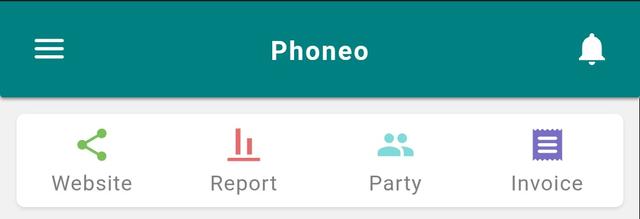
- Go to the Home page.
- Tap on the Reports icon.
- The Report page will open.
Step 2: Open Schedule Email Option
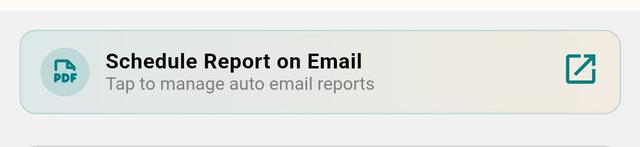
- Find the “Schedule Report on Email” banner.
- Tap on it.
Step 3: Start Scheduling
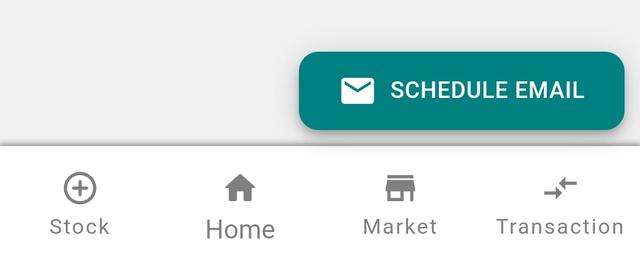
- Tap the Schedule Email button.
Step 4: Choose Report Type
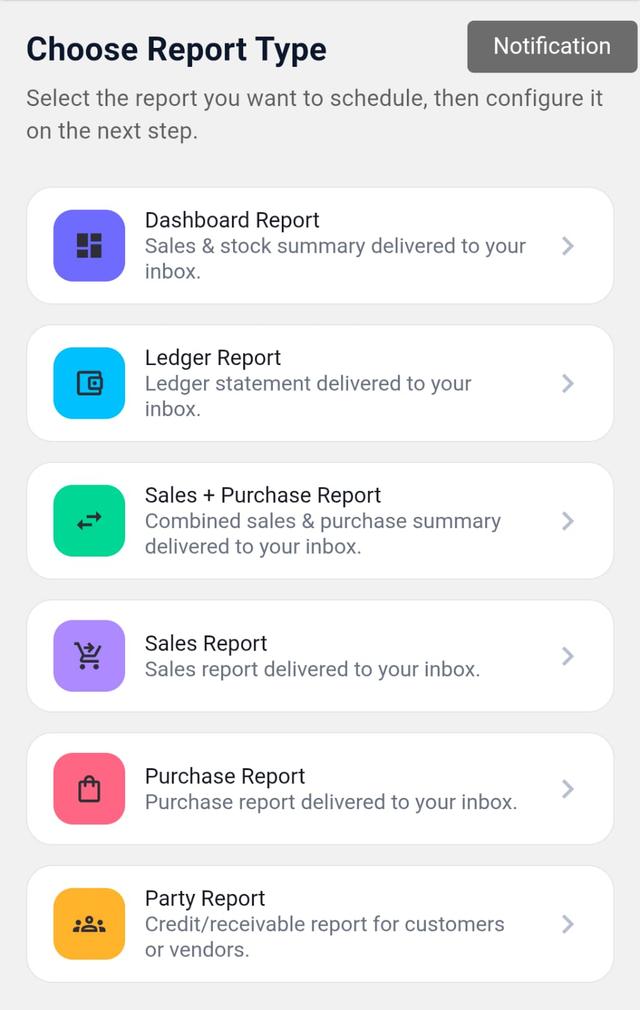
- Select the report type:
- Dashboard Report
- Ledger Report
- Sales + Purchase Report
- Sales Report
- Purchase Report
- Party Report
Step 5: Enter Email Address
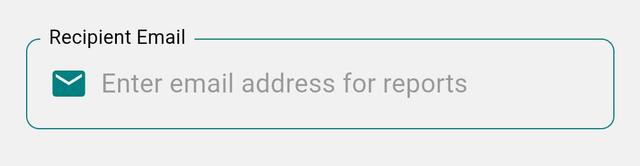
- Enter the email where you want to receive reports.
Step 6: Set Report Frequency
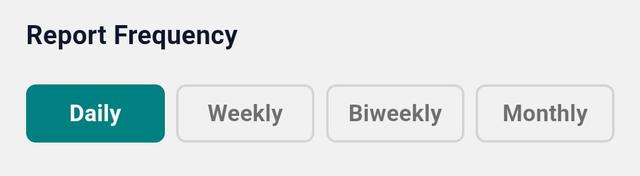
- Choose how often you want reports:
- Daily
- Weekly
- Bi-weekly
- Monthly
Step 7: Set Preferred Time
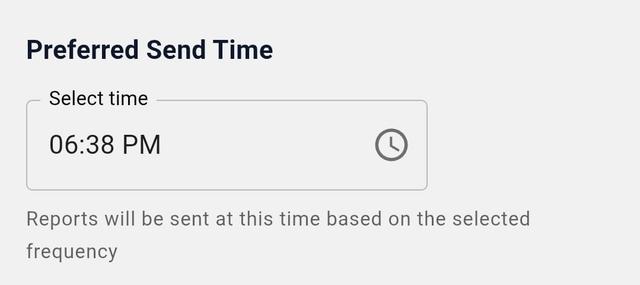
- Select the time for report delivery.
- Reports will be sent automatically at this time.
Step 8: Additional Settings (Party Report Only)
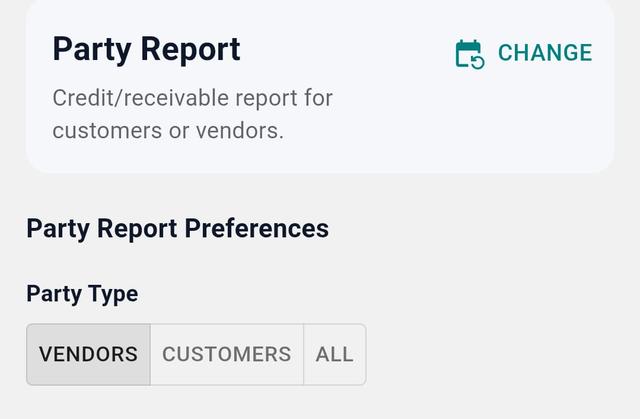
- Party Type: Vendor / Customer / All
- Balance Type: Balance Due / Advance Balance / All
- Set Data Limit (number of parties).
- Set Minimum Credit Limit if required.
Step 9: Schedule Report
- Tap Schedule Report.
- Your report is now scheduled successfully.
- Note: Each email report costs 1 coin (1 email = 1 coin).
Step 10: View Scheduled Reports
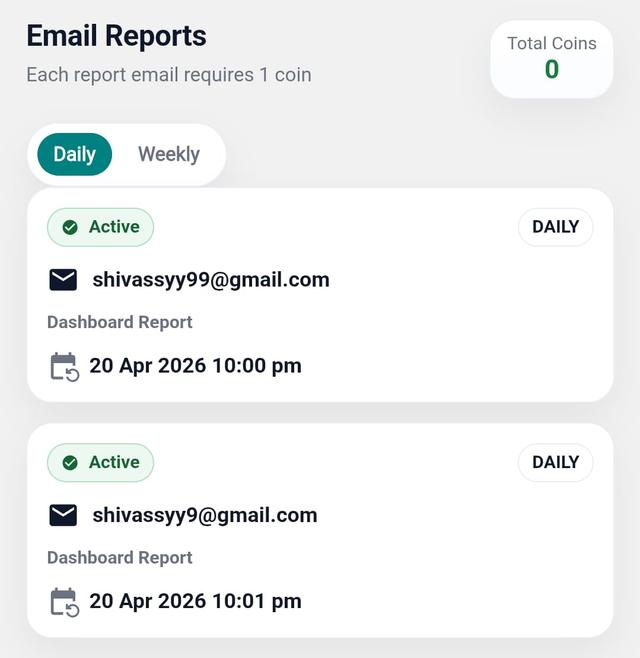
- Go to the Email Reports page.
- View all scheduled reports.
Step 11: Edit or Delete Scheduled Report
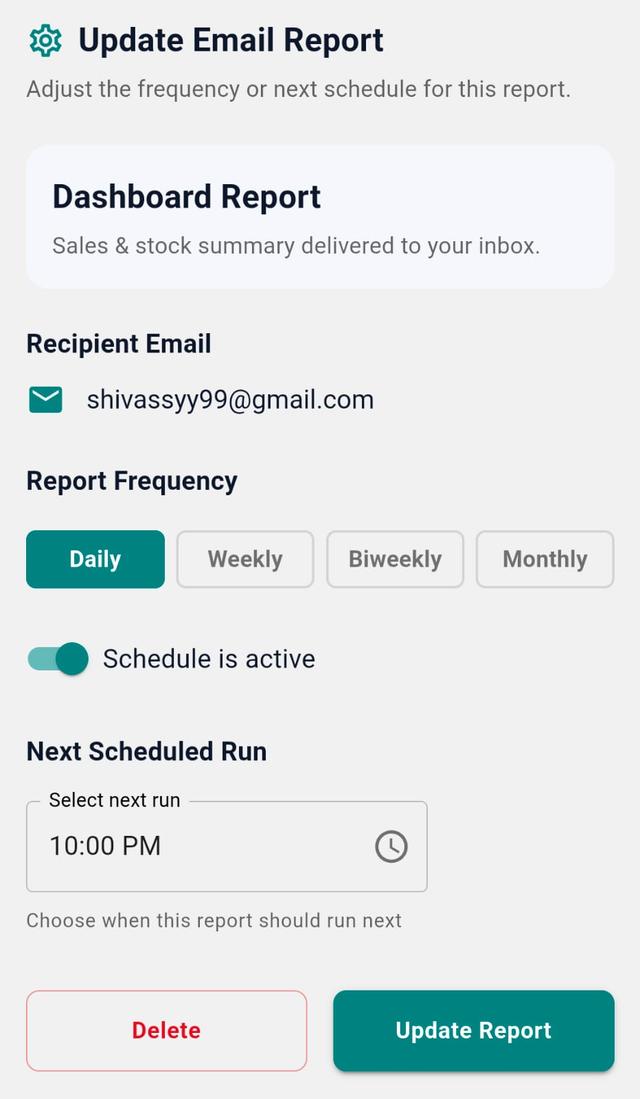
- Tap on any Report Card.
- You can:
- View full details
- Update settings
- Delete the report
Final Note
Your reports now arrive like clockwork — quiet, consistent, and complete. Sales, profit, purchase, and expenses — all delivered to your inbox, exactly when you need them.