

Other Items / Accessories Purchase – Step-by-Step Guide
Use this guide to add other items or accessories (charger, earphone, cover, etc.) into your stock in a clean and well-categorized way.
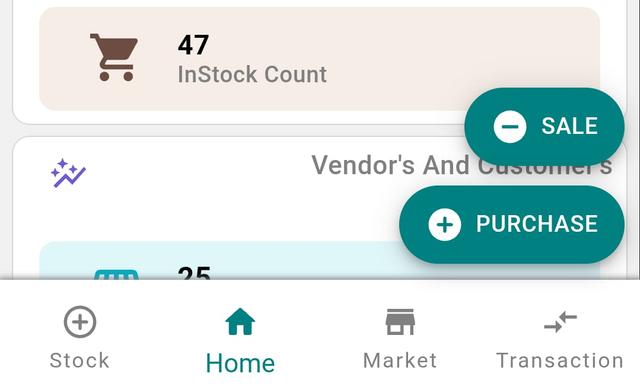
Step 1: Start a New Purchase
- 1.Open the app and go to the Home page.
- 2.Tap Purchase.
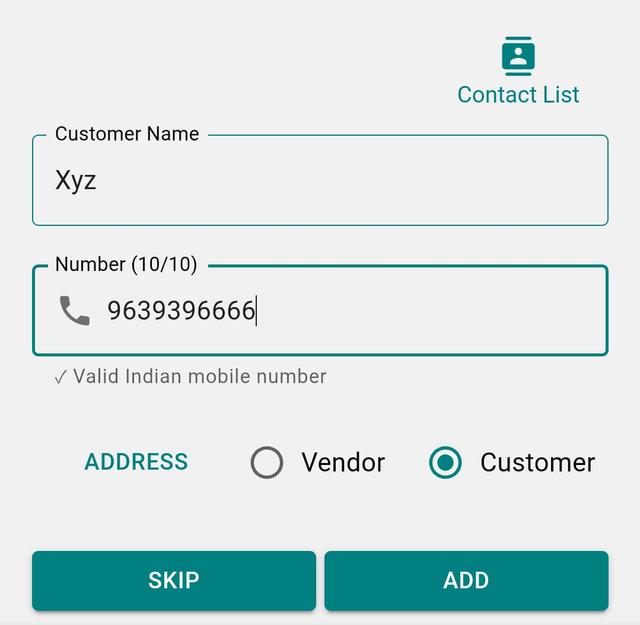
Step 2: Add Party Details (Optional)
- 1.Enter Customer Name or Mobile Number.
- 2.Choose whether the party is a Customer or Vendor.
- 3.If you want, you can skip this step and continue.
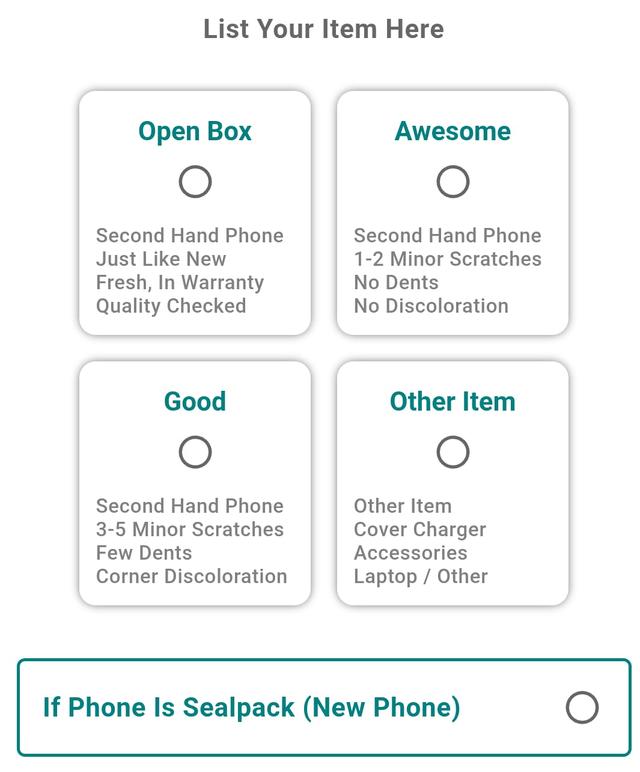
Step 3: Select Item Type
From the available options, select Other Item.
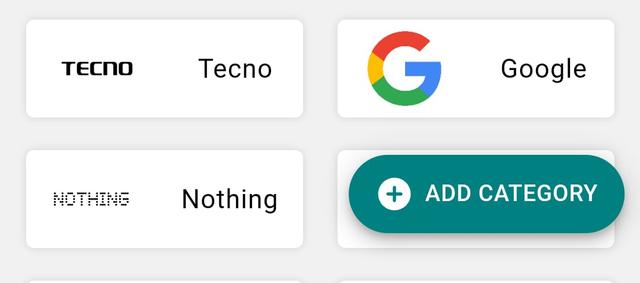
Step 4: Create a Category (Recommended)
Categories help you keep accessories organized and make stock audits easier.
- 1.Tap Add Category.
- 2.Enter the Category Name (Example: Charger, Earphone, Cover, Glass Guard)
- 3.Add a Category Description.
Step 5: Add Category Thumbnail (Optional)
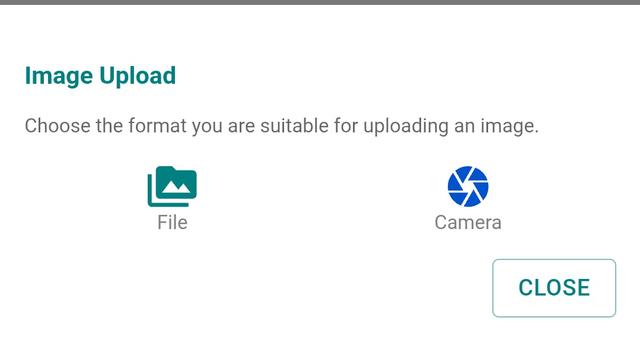
- 1.Tap the Thumbnail icon at the top-right of the category box.
- 2.Choose how you want to add the image:
- Camera – take a photo directly
- Files / Gallery – select an existing image
- 3.Rotate or adjust the image if needed.
- 4.Tap Save.

Step 6: Save the Category
- 1.Tap Save.
- 2.Your category is now created and ready to use.
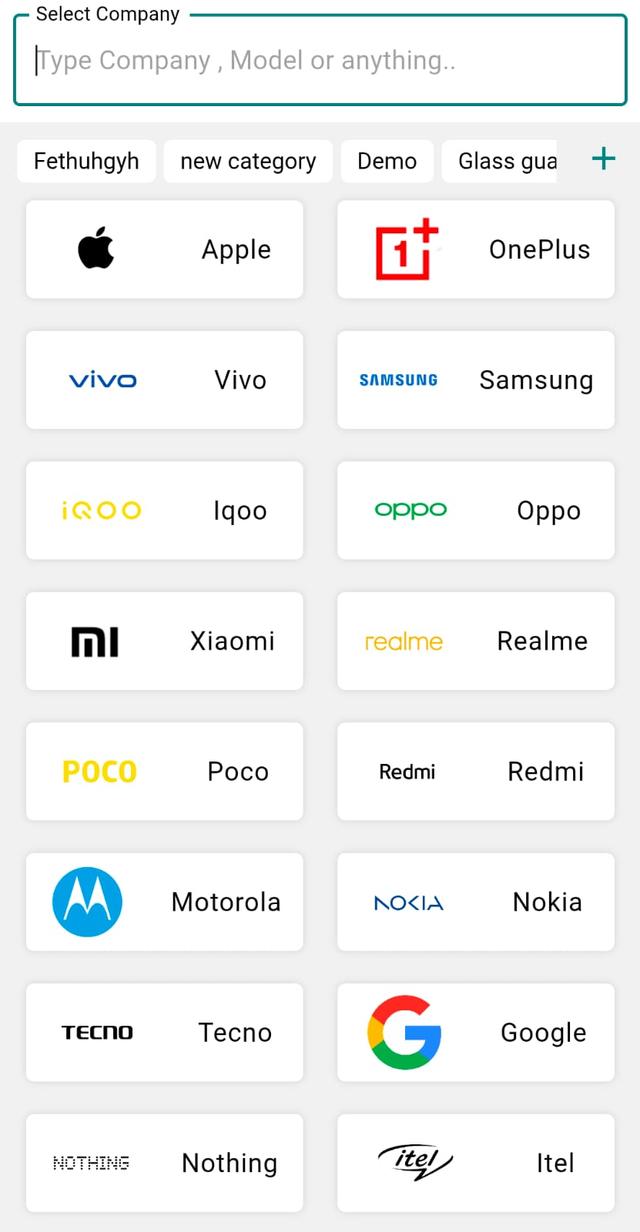
Step 7: Select Company / Brand
- 1.Enter the Company Name.
- 2.You can search and select from the list or enter it manually.
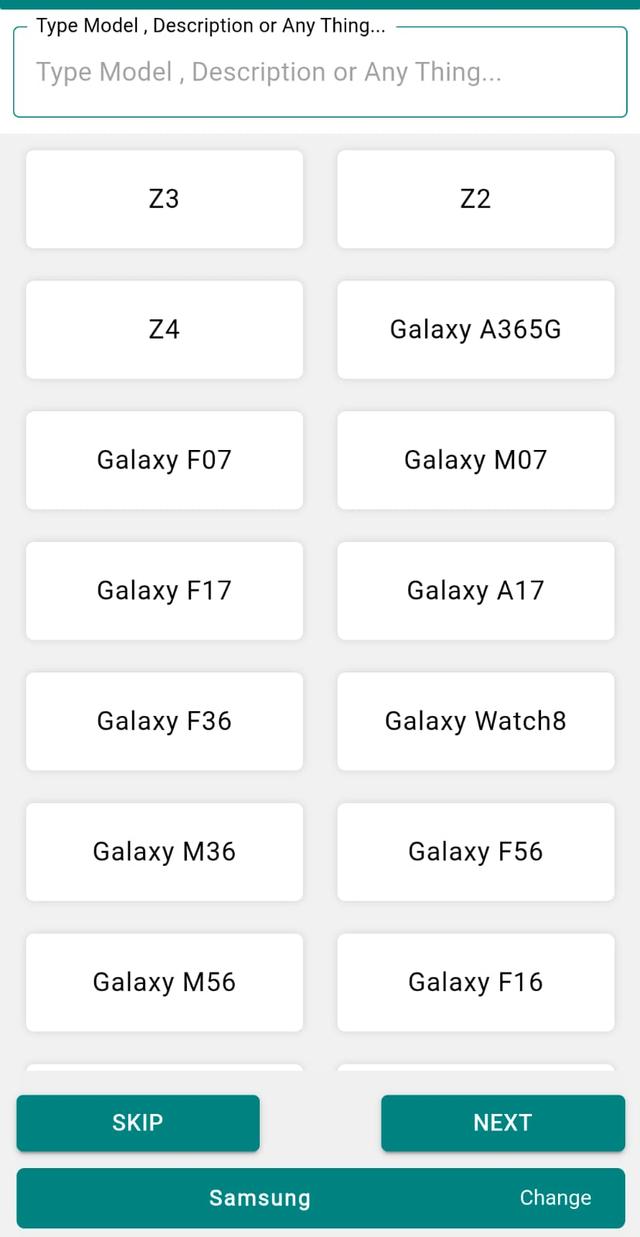
Step 8: Select or Enter Model
- 1.Select the Model Name if available.
- 2.You can skip the model or enter it manually.
- 3.Tap Next.
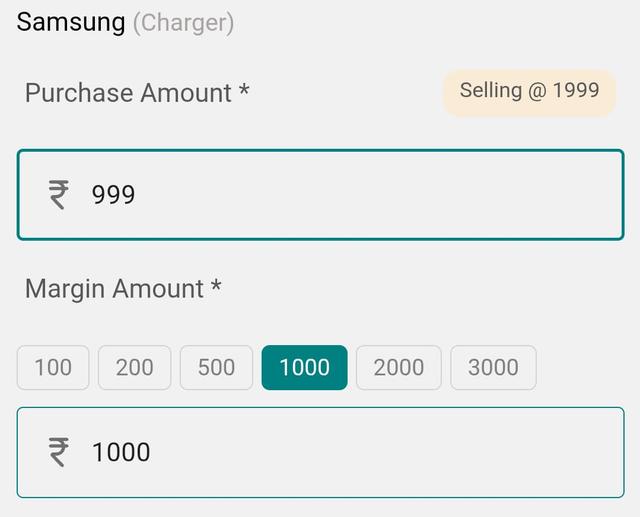
Step 9: Enter Purchase Amount and Margin
- 1.Enter the Purchase Amount (price you bought the item for).
- 2.Enter the Margin (your expected profit while selling).

Step 10: Add Item Image (Optional)
Turn ON the Image toggle if you want to add a product image, then tap Next.
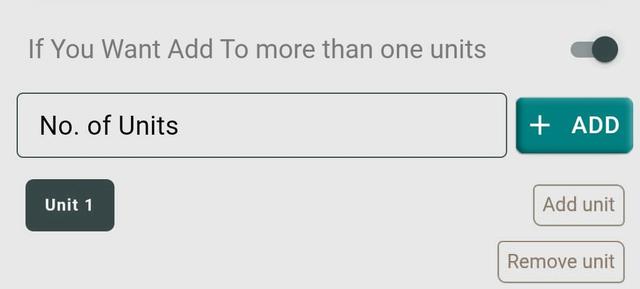
Step 11: Add Multiple Units (Optional)
Tap Add Unit to add more quantity of the same item. You can repeat this as many times as required.
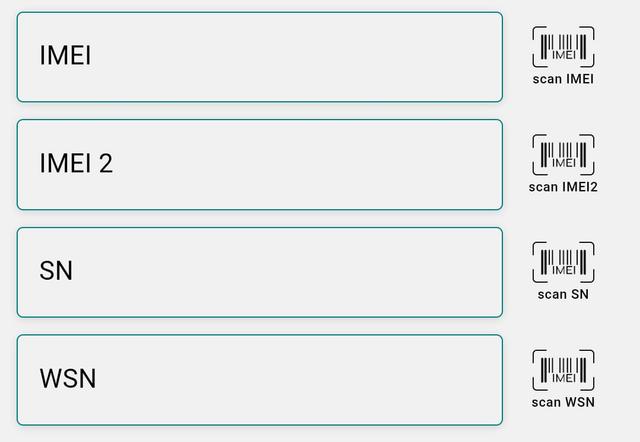
Step 12: Add IMEI / SN / WSN Details (Optional)
- Use Scan IMEI or Manual Entry.
- If the item supports dual IMEI, enter both numbers.
- You can also add SN / WSN numbers.
- Each unit can have different numbers.
- If not required, you can skip this step.
Step 13: Final Save
After adding all units, tap Save. Your accessory stock will be added successfully.
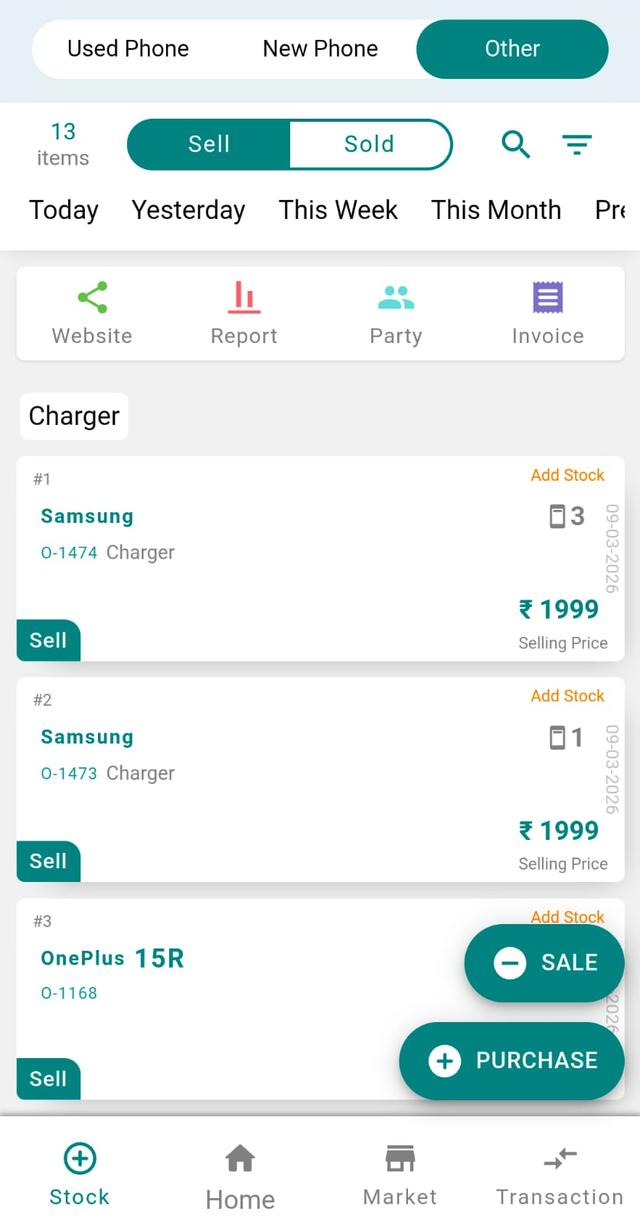
Step 14: View Added Stock
Go to the Stock page → open the Other tab to view all accessories.
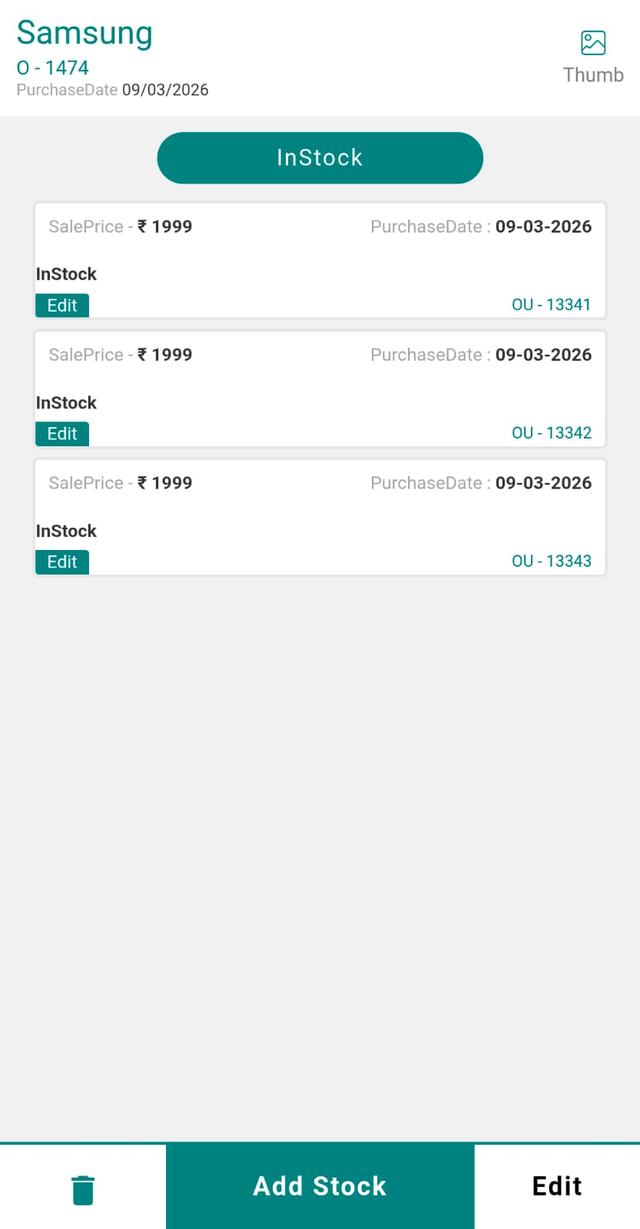
Step 15: View Stock Details
Tap any Stock Card to view complete stock details.
Step 16: Add More Stock in the Same Category
Tap Add Stock to quickly add more items under the same category.
Why Record Accessory & Other Purchases in Your Inventory
Recording accessory and other purchases in your mobile shop inventory keeps every charger, earphone, cover, tempered glass and repair part accounted for. In a busy mobile shop, small accessories move fast and are easy to lose track of. When you enter each "Other Item" purchase in Phoneo with its category, company, purchase amount and margin, your stock count, profit and dead-stock reports stay accurate, GST and non-GST billing pulls the right price, and month-end stock audits take minutes instead of hours.
Tips & Why It Matters
- Create clear categories (Charger, Earphone, Cover, Glass Guard) so accessories never get mixed with mobile phone stock.
- Always enter the correct purchase amount and margin to see true profit per accessory.
- Use the Other tab on the Stock page to review accessory quantity and spot slow-moving or dead stock early.
- Add SN / WSN numbers where useful so warranty and returns are easy to trace.
- Keep purchases updated daily so billing, udhari and reports always match your physical shelf.
Related Guides & Features
- IMEI-wise stock tracking for mobiles
- GST & non-GST billing software
- Smart inventory management for mobile shops
- Clear dead stock and slow-moving accessories
- See all Phoneo features
Ready to keep your accessory stock organized? View Phoneo plans and start your 7-day free trial.
Final Note
Using categories keeps your accessory stock clean, organized, and audit-friendly. It reduces confusion and makes stock management faster and more reliable.