

New Phone (Seal Pack) Purchase – Step-by-Step Guide
Use this guide to add new (seal pack) phones into your stock with proper pricing, units, IMEI, and variants.
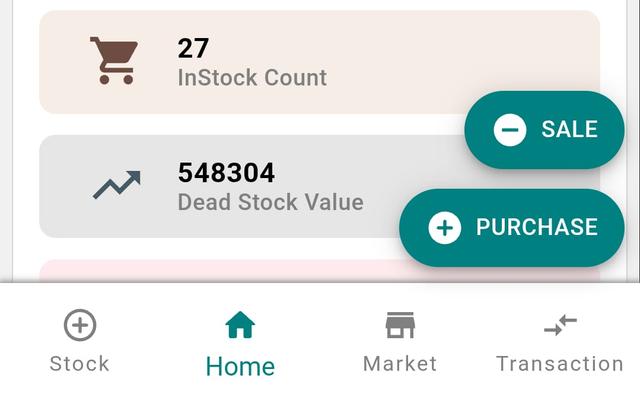
Step 1: Start a New Purchase
- Open the app and go to the Home page.
- Tap / Click the Purchase button.
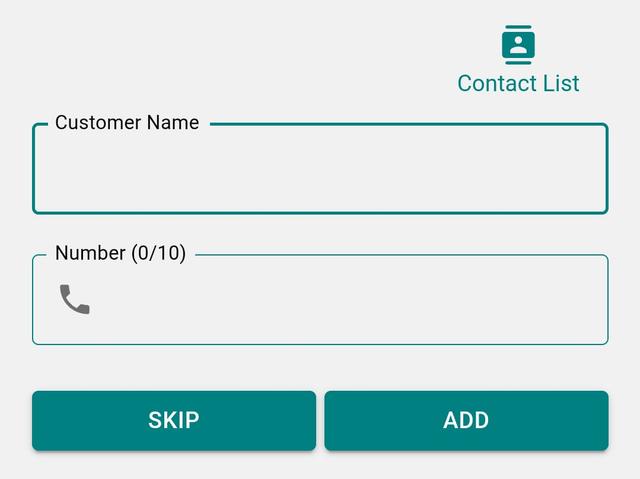
Step 2: Add Party Details (Optional)
- Enter the Customer Name or Mobile Number.
- Choose whether the party is a Customer or a Vendor.
- You can skip this step and continue.
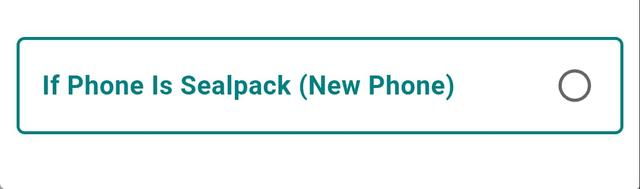
Step 3: Select Phone Type
Choose Seal Pack (New Phone) as the phone type and tap Next.
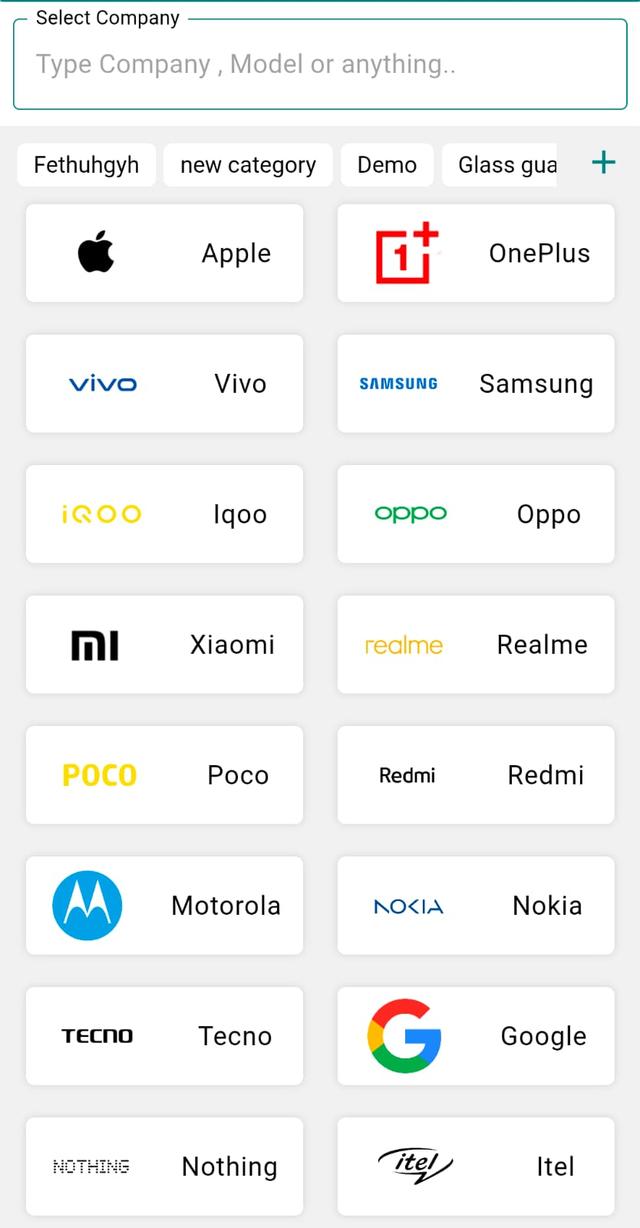
Step 4: Select Company (Brand)
- Tap on Company Name.
- Search the brand if required.
- Select the correct company.
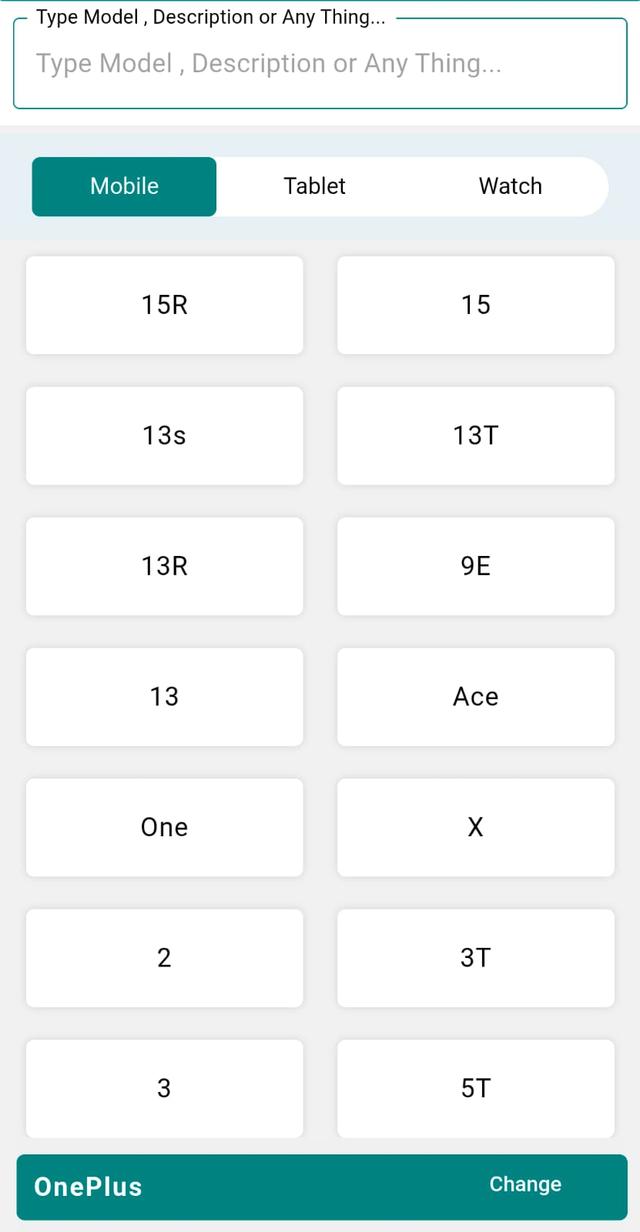
Step 5: Select Model
Tap on Model and select the correct one (data already available).
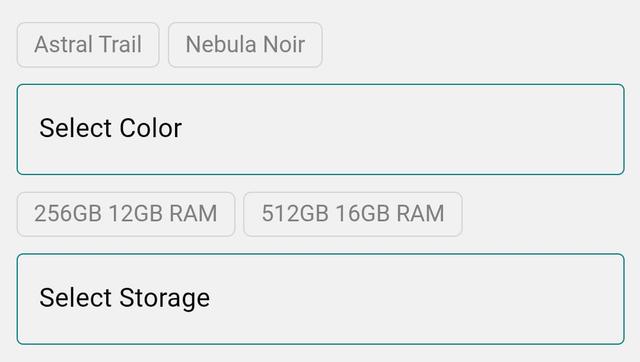
Step 6: Choose Color and Variant
- Select the Color.
- Select the Variant (Storage / RAM).
- These options are pre-filled from the system.
Step 7: Add Customer Details (If Skipped Earlier)
Enter Customer Name and Mobile Number if not added before.
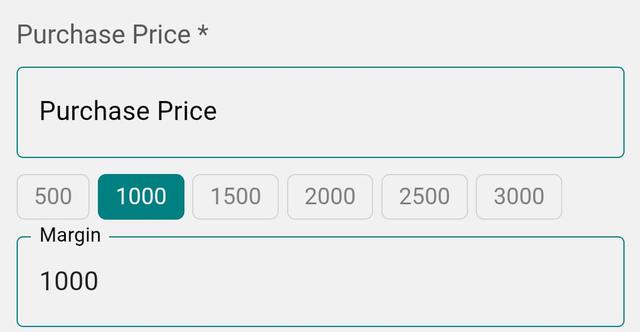
Step 8: Enter Purchase Amount and Margin
- Enter the Purchase Amount.
- Enter the Margin (your profit).
Step 9: Add Multiple Units (Optional)
Tap Add Unit to add multiple pieces of the same model/variant.
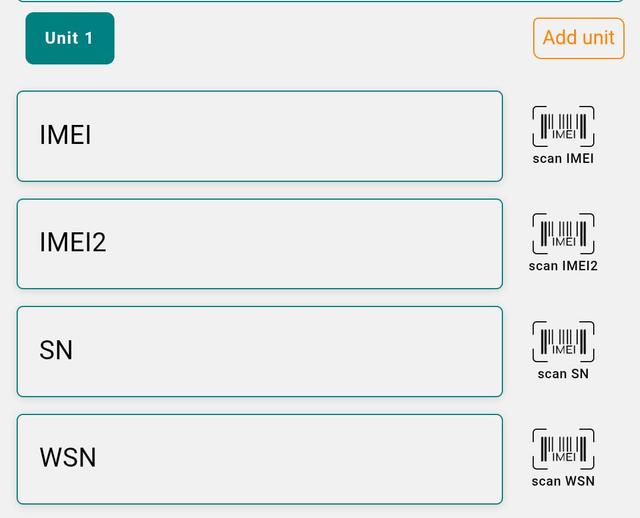
Step 10: Add IMEI Details for Each Unit (Optional)
- Scan IMEI or enter manually.
- Add both IMEIs if available.
- You can also add SN / WSN.
- Tap Save.
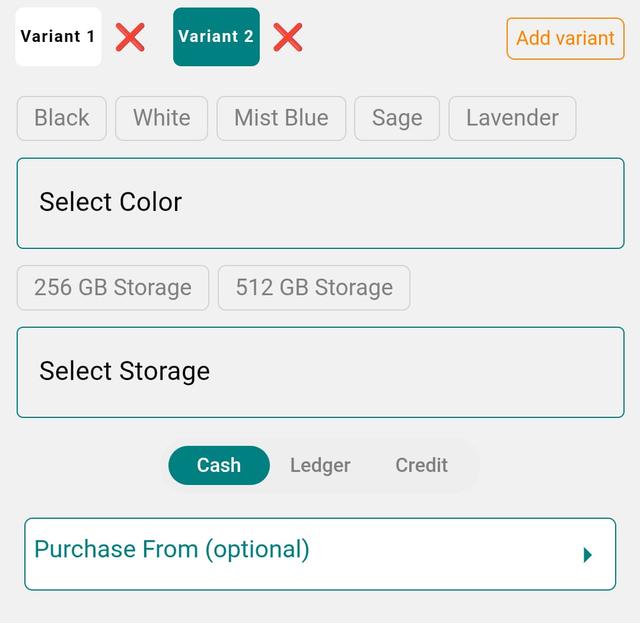
Step 12: Add Another Variant (Optional)
- Tap Add Variant (top-right).
- Select Color and Storage.
- Enter Purchase Price and Margin.
- Add units and IMEIs if needed.

Step 13: Final Save
Tap Save once all units and variants are added.
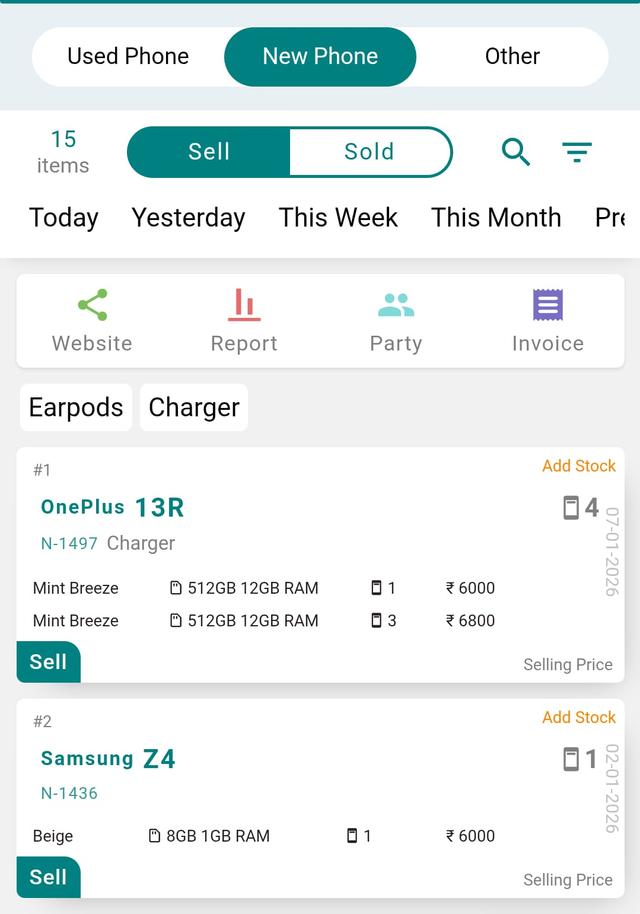
Step 14: View Your Stock
Go to Stock → New Phone tab to see added stock.
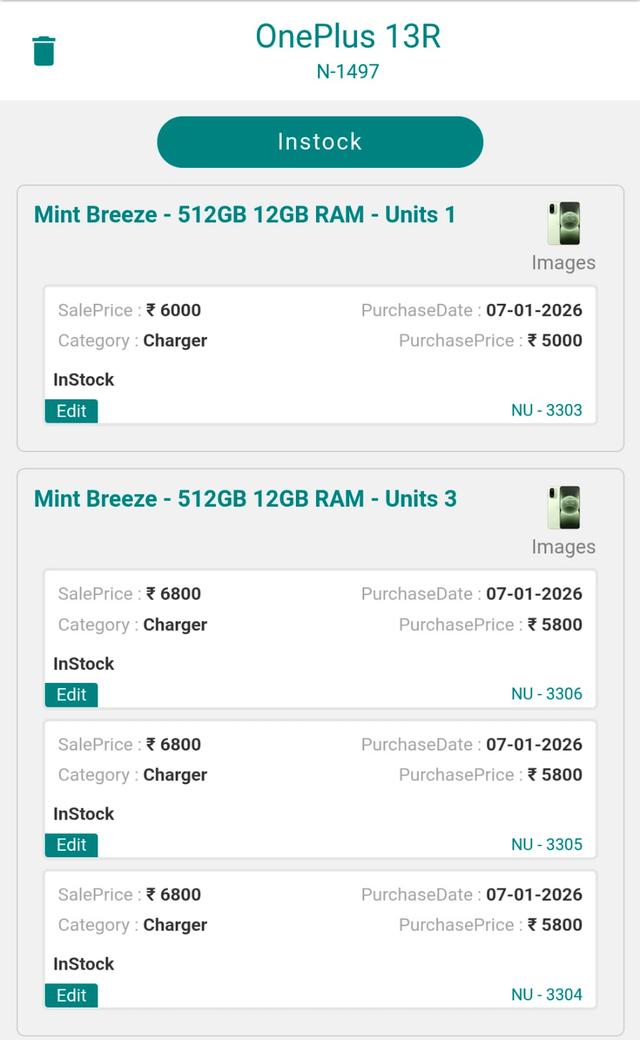
Step 15: View Stock Details
Tap any stock card to view Company, Variant, Units, IMEI, and Pricing.
Why Record a New Phone Purchase by IMEI?
Recording a new phone purchase and stock-in entry by IMEI gives every seal pack handset a unique identity in your inventory. Instead of counting loose pieces, each unit is matched to its exact IMEI, model, colour, variant, purchase price, and margin. For an Indian mobile shop this means error-free billing, faster warranty and replacement claims, and a stock register that always shows the true count on the shelf.
Tips & Why It Matters
- Scan or type both IMEI numbers at purchase so each handset is traceable from stock-in to final sale.
- Enter the correct purchase amount and margin to keep profit calculation and GST billing accurate.
- Use the Add Unit and Add Variant options to record bulk seal pack stock in one purchase entry instead of many separate ones.
- IMEI-wise records make dead-stock clearance and physical stock audits simple — you always know which exact piece is unsold.
- Clean stock-in data feeds straight into reports, so your daily and monthly sales figures stay reliable.
Related Guides & Features
- IMEI-wise stock tracking — track every handset by its unique number.
- GST billing software — turn stock into GST and non-GST invoices.
- IMEI-based stock audit — verify physical stock against your records.
- Bulk stock upload — add large seal pack lots in minutes.
- See all Phoneo features built only for mobile shops.
Ready to manage seal pack stock the easy way? Start your 7-day free trial or open the Phoneo app to add your first phone purchase today.
Final Note
Once saved, your new phone stock is ready for selling, billing, and tracking with clean inventory and correct profit calculation.